1. Gabatarwa
This manual provides detailed instructions for the GLEDOPTO ESP8266 WLED LED Controller, Model GL-C-014WL. This device is designed to control various addressable LED strip lights, offering dynamic lighting effects and smart control options via the WLED application and compatibility with platforms like Alexa. It features an open-source ESP8266 platform, enabling customization and efficient power management.

Figure 1.1: GLEDOPTO ESP8266 WLED LED Controller (Model GL-C-014WL) showing input and output terminals, indicator light, and restart button.
2. Saita da Shigarwa
2.1. Umarnin Waya
The controller features easy-to-use wiring ports for connecting various addressable LED strips. Ensure proper polarity and connection for optimal performance.
- Shigar da Wuta: Connect your DC 5-24V power supply to the 'INPUT' terminals (V+ and V-).
- Haɗin LED: Connect the LED strip to the output terminals. The default output is GPIO2.
- V (VCC): Connect to the positive power line of your LED strip.
- D (DATA): Connect to the data line of your LED strip.
- G (GND): Connect to the ground line of your LED strip.
- Tsarin Tashar Jiragen Ruwa Mai Sauri: To connect wires, open the connector upwards, insert the wire, and then press down to secure it.

Figure 2.1: Detailed wiring diagram for the GLEDOPTO ESP8266 WLED LED Controller, illustrating connections for VCC, DATA, and GND.

Figure 2.2: Visual guide for using the quick connect port design, showing how to open, insert, and secure wires.
2.2. WLED App Connection
The controller uses open-source WLED software for app control. Follow these steps to connect your device:
- Open Wi-Fi Settings: On your mobile device, open Wi-Fi settings and search for a hotspot named "WLED-AP". Connect to this network.
- Access WLED Setup Page: After connecting, a network page should automatically pop up. If not, open a web browser da kewaya zuwa
http://4.3.2.1. - Saita Wi-Fi: In the WLED setup page, select your home Wi-Fi network from the scan results and enter its password.
- Ajiye Saituna: Click the "Save" button to apply the Wi-Fi settings. The controller will restart and attempt to connect to your home network.
- Connect Mobile Device to Home Wi-Fi: Ensure your mobile device is connected to the same home Wi-Fi network as the WLED controller.
- Open WLED App: Launch the WLED application on your mobile device.
- Discover Controller: Click the "+" button within the app to find and add your WLED controller.
- Zaɓi Mai Kulawa: Click on the discovered WLED device to access its control interface.
Video 2.1: Demonstrates the process of connecting the GLEDOPTO WLED Controller to the WLED mobile application, including Wi-Fi setup and device discovery.
3. Aiki
3.1. App Control and Dynamic Modes
The WLED app provides comprehensive control over your LED strip lights. You can select from over 100 built-in dynamic modes, adjust colors, brightness, and speed.

Figure 3.1: The WLED mobile application interface showing color selection and basic controls for connected LED lights.

Figure 3.2: The WLED app's effects menu, showcasing a wide variety of dynamic lighting patterns and animations.
Video 3.1: Demonstrates various lighting effects and color changes achievable with the GLEDOPTO WLED Controller through the mobile application.
3.2. Color Order Correction
If the colors displayed by your LED strip do not match the app's selection (e.g., selecting red shows blue), you may need to adjust the color order in the controller's settings.
- Access Configuration: In the WLED app, navigate to the 'Config' menu.
- LED Preferences: Select 'LED Preferences' from the configuration options.
- Adjust Color Order: Under 'Hardware setup' and 'LED outputs', locate 'Color Order'. Adjust this setting (e.g., from GRB to RGB, or vice versa) until the colors are correct.
- Saita Tsawon: Ensure the 'Length' parameter matches the number of LEDs on your strip.
- Ajiye Canje-canje: Click 'Save' to apply the new settings.
3.3. Sync Effects
On the same Wi-Fi network, the lighting effects of multiple LED strips connected to WLED controllers can be synchronized.
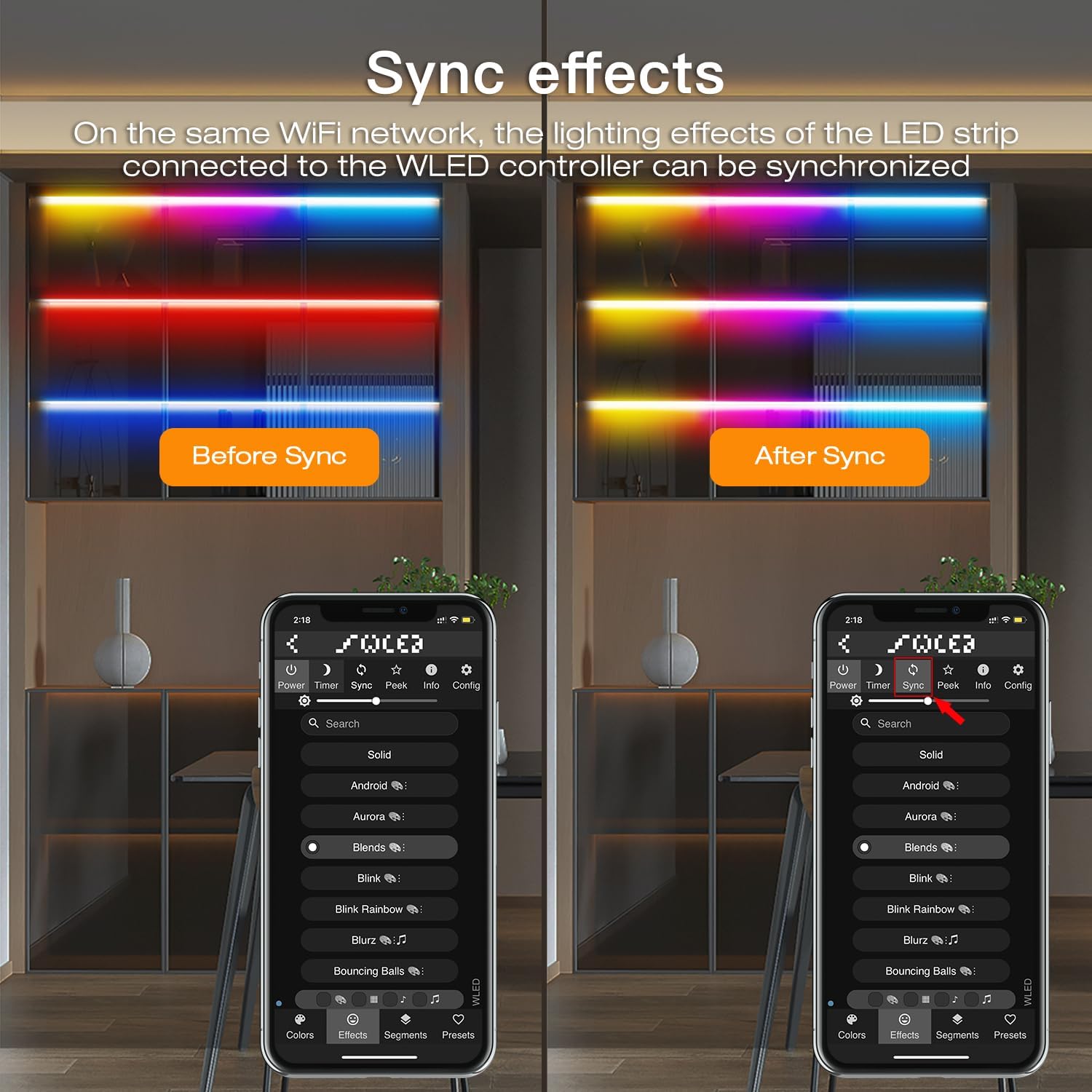
Figure 3.3: Comparison of LED strip lighting effects before and after synchronization using the WLED application.
3.4. Segmented Color Control
The WLED controller allows for personalized control of individual segments of your LED strip, enabling different colors or effects across various sections.

Hoto 3.4: Example of segmented color control, where different parts of an LED strip display distinct colors, managed through the WLED app.
3.5. Haɗin Alexa
The GLEDOPTO WLED controller can be integrated with Amazon Alexa for voice control.
- Enable Alexa Device Emulation: In the WLED app, go to 'Config' > 'Sync Interfaces'. Check the box next to 'Emulate Alexa device'.
- Ajiye kuma sake farawa: Save the settings and power cycle the WLED controller.
- Discover Devices in Alexa App: Open the Amazon Alexa app. Go to 'Devices' > '+' > 'Add Device'.
- Select 'Other': Choose 'Other' as the device type.
- Gano Na'urorin: Select 'Discover Devices' to find your WLED controller.
4. Mabuɗin Siffofin
- ESP8266 Open Source: Utilizes open-source software, allowing for customization and modification of functions.
- Ƙarfin Ƙarfi: Features an on-board switching regulator for the ESP8266 and a built-in MOSFET relay to disable output power when WLED is off, ensuring efficient idle operation.
- Easy Wiring Ports: Designed with user-friendly ports for simple connection of various addressable LED strips without complex wiring.
- Rich Dynamic Modes: Includes over 100 built-in dynamic lighting modes, such as color gradients, flashing, and scanning effects, adjustable via the WLED app.
- Faɗin Daidaitawa: Supports a broad range of addressable LED strips, including WS2811, WS2812, WS2813, SK6812, and more.
5. Ƙayyadaddun bayanai
| Siffar | Daki-daki |
|---|---|
| Lambar Samfura | Saukewa: GL-C-014WL |
| Alamar | Sogledwow (GLEDOPTO) |
| Shigar da Voltage | DC 5-24V |
| Adadin IC | 800 Max |
| Fitar Yanzu/Tashar | 10A Max |
| Jimlar Fitar Yanzu | 15A Max |
| Yanayin Aiki | -20 ° C zuwa 45 ° C |
| Hanyar sarrafawa | WLED APP Control, Alexa |
| Supported LED Strips | WS2811, WS2812, SK6812, TM1814, WS2813, WS2815, FCOB Addressable Strip Light |
| Amfanin Cikin Gida/Waje | Cikin gida |
| Kayan abu | Filastik |
| Nauyin Abu | 1.92 oz |
| Girman Kunshin | 4.29 x 1.85 x 0.87 inci |
6. Shirya matsala
- Incorrect Colors Displayed: If the LED strip displays incorrect colors, refer to Section 3.2 "Color Order Correction" to adjust the color order in the WLED app's LED Preferences.
- Controller Resets Frequently: Ensure your power supply is adequately rated for the length and type of LED strip connected. An insufficient power supply can cause frequent resets.
- Slow or Choppy Effects: The factory firmware might not be optimized for all setups. Consider updating the WLED firmware to the latest ESP8266 version for improved performance. Ensure you select the correct firmware version (ESP8266, not ESP32) during updates to avoid bricking the device.
- Alexa Unresponsive: Double-check that 'Emulate Alexa device' is enabled in the WLED app's 'Sync Interfaces' settings and that the controller has been rediscovered by the Alexa app after saving changes.
- Cannot Connect to WLED-AP Hotspot: Ensure the controller is powered on and within range. If issues persist, try a factory reset (if available) or power cycle the device.
7. Kulawa
- Tsaftacewa: Keep the controller free from dust and debris. Use a dry, soft cloth for cleaning. Avoid using liquid cleaners.
- Muhalli: Operate the controller within the specified temperature range (-20°C to 45°C) and in a dry indoor environment. Avoid exposure to moisture or extreme temperatures.
- Sabunta Firmware: Periodically check for and apply WLED firmware updates to benefit from new features, performance improvements, and bug fixes. Always ensure you download the correct firmware for the ESP8266 chip.
- Duban Waya: Occasionally inspect wiring connections to ensure they are secure and free from damage.
8. Abin da ke cikin Akwatin
- 1x GLEDOPTO ESP8266 WLED Strip Controller
- 1 x Manual mai amfani
- Sitika 1x 3cm
9. Taimako
For further assistance or technical support, please refer to the official GLEDOPTO website or contact their customer service. Detailed information and community forums for WLED are also available online for advanced users and troubleshooting.