1. Gabatarwa
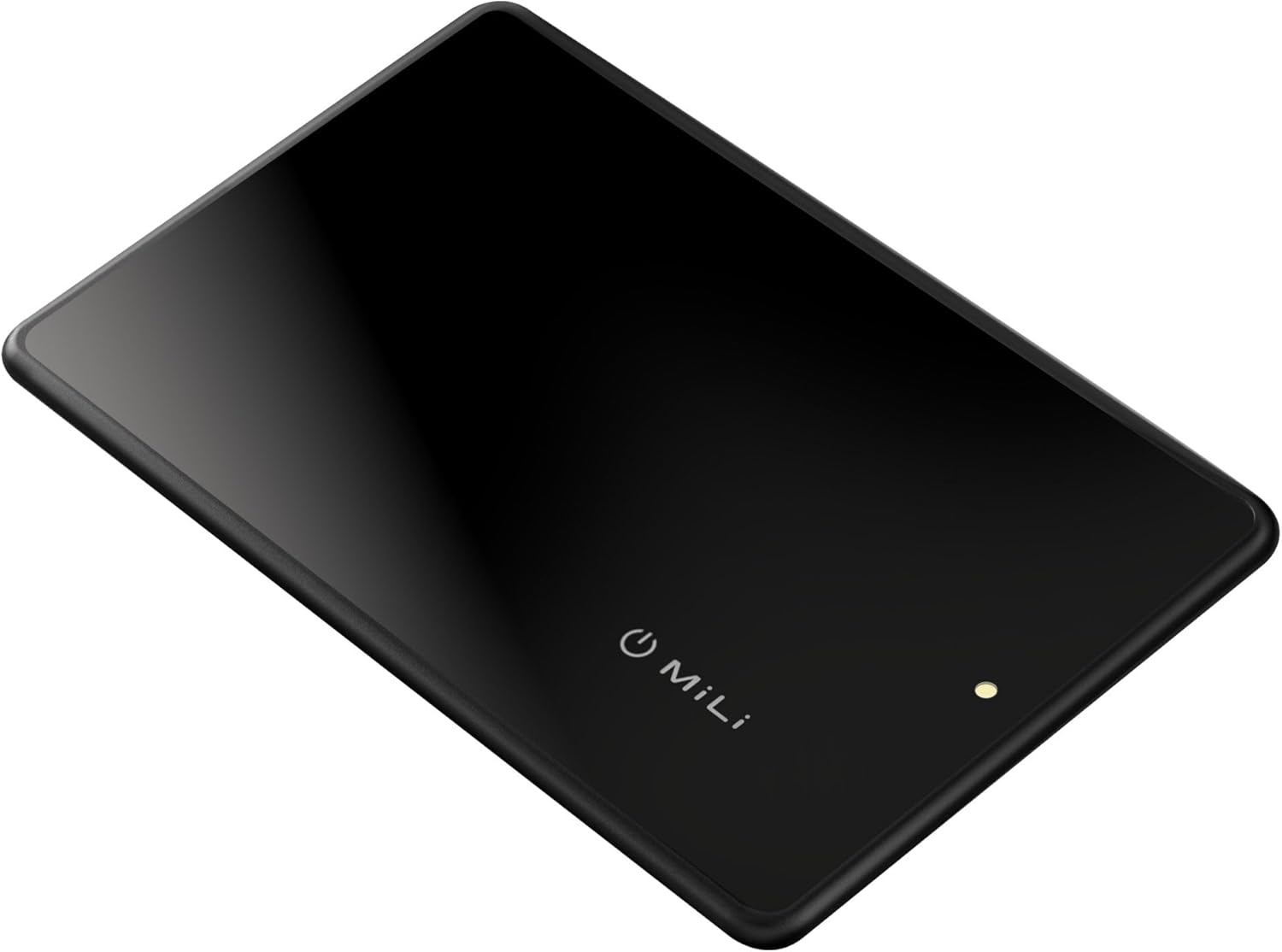
The Mili MiCard is a credit card-sized wireless tracker designed to help you locate your valuables using Apple's Find My network. This device is MFi Certified, ensuring seamless integration with your iOS devices. Its slim profile, wireless recharging capability, and IP65 waterproof rating make it a reliable companion for keeping track of items such as wallets, handbags, and passport books.
2. Samfurin Ya Ƙareview
The MiCard tracker is engineered for convenience and durability. Key features include:
- Wireless Rechargeable Battery: Equipped with a long-lasting battery that can be recharged wirelessly. A single charge can last 4-6 months, with the battery maintaining functionality for up to 5 years.
- MFi Certified for iOS: Fully compatible with Apple's Find My app, allowing you to locate your items directly from your iPhone, iPad, or Mac.
- Slim da Karamin Zane: Designed to fit easily into wallets, phone cases, and other small compartments without adding significant bulk.
- IP65 Mai hana ruwa Rating: Resistant to dust and water splashes, capable of withstanding immersion in water up to 1 meter deep for 30 minutes.

3. Saita Umarnin
Follow these steps to set up your Mili MiCard with your Apple device:
- Kunna Wuta: Ensure your MiCard is charged. The device typically powers on automatically or can be activated by a short press of the power button (if present).
- Bude Nemo My App: On your iPhone, iPad, or Mac, open the 'Find My' application.
- Ƙara Abu: Navigate to the 'Items' tab and tap the '+' icon. Select 'Add Other Item'.
- Haɗin kai: Your device will begin searching for nearby items. Place your MiCard close to your Apple device. Once detected, follow the on-screen prompts to name your MiCard and register it to your Apple ID.
- Tabbatarwa: After successful pairing, your MiCard will appear in the 'Items' list within the Find My app.

4. Umarnin Aiki
Once your MiCard is set up, you can use the Find My app to locate your items:
- Locate on Map: Open the Find My app and select your MiCard from the 'Items' list. Its last known location will be displayed on a map.
- Kunna Sauti: If your MiCard is nearby, you can tap 'Play Sound' in the Find My app to make it emit an audible alert, helping you pinpoint its exact location.
- Hanyar: For items further away, you can get directions to its last known location through the Find My app.
- Notify When Found/Left Behind: Configure notifications in the Find My app to alert you if your item is found by another Apple device user or if you leave your item behind at a known location.

5. Lost Mode and NFC Function
If your MiCard-equipped item is lost, you can activate Lost Mode:
- Kunna Yanayin da ya ɓace: In the Find My app, select your MiCard and enable 'Lost Mode'. You can enter a phone number or email address where you can be contacted.
- Ayyukan NFC: If someone finds your lost item, they can tap their NFC-enabled smartphone on your MiCard. This will display the contact information you provided in Lost Mode, allowing them to return your item.

6. Yin caji
The Mili MiCard features a wireless rechargeable battery:
- Hanyar Caji: Place the MiCard on a compatible wireless charging pad.
- Alamar Caji: A small LED light on the MiCard will indicate its charging status.
- Lokacin Caji: Cikakken caji yawanci yana ɗaukar kimanin awa 1.
- Rayuwar Baturi: A single full charge provides 4-6 months of usage. The internal battery is designed for a lifespan of up to 5 years.

7. Ruwa Resistance
The MiCard has an IP65 rating, meaning it is:
- Dust Tight: Cikakken kariya daga shigar ƙura.
- Mai jure Ruwa: Protected against low-pressure water jets from any direction and can withstand immersion in water up to 1 meter for 30 minutes.
While resistant, it is not recommended for prolonged submersion or use in extreme water conditions.

8. Kulawa
To ensure the longevity and optimal performance of your MiCard:
- Tsaftacewa: Goge na'urar da kyalle mai laushi da busasshe. A guji amfani da sinadarai masu ƙarfi ko kayan gogewa.
- Ajiya: Store the MiCard in a cool, dry place when not in use for extended periods.
- Kauce wa Mummunan Yanayi: Do not expose the device to extreme temperatures, direct sunlight for prolonged periods, or corrosive liquids.
9. Shirya matsala
If you encounter issues with your Mili MiCard, consider the following:
- Not Connecting to Find My:
- Tabbatar cewa an kunna Bluetooth akan na'urar ku ta iOS.
- Make sure the MiCard is charged.
- Try restarting your iOS device and the MiCard (if applicable).
- Ensure the MiCard is within range of your iOS device or other Apple devices in the Find My network.
- MiCard Not Charging:
- Verify that your wireless charging pad is functional and properly connected to a power source.
- Ensure the MiCard is correctly placed on the charging pad.
- Remove any obstructions between the MiCard and the charging pad.
- Accidental Button Presses: The MiCard may have a button that can be accidentally pressed when in a tight wallet, potentially affecting its status (e.g., turning off or entering pairing mode). If you experience unexpected behavior, check the device's status in the Find My app and reposition it in your wallet if necessary to prevent accidental presses.
- Wuri Mara Daidai: The accuracy of the location depends on the proximity of other Apple devices in the Find My network. In areas with fewer Apple devices, location updates may be less frequent or precise.
10. Ƙayyadaddun bayanai
| Siffar | Daki-daki |
|---|---|
| Lambar Samfura | HD-P16-C |
| Dimensions (L x W x Thickness) | 8.5 x 5.3 x 0.26 cm (3.35 x 2.09 x 0.10 inci) |
| Nauyi | 23 Grams (0.81 oz) |
| Nau'in Baturi | 1 Lithium Polymer baturi (an haɗa) |
| Battery Life (per charge) | 4-6 watanni |
| Total Battery Lifespan | Har zuwa shekaru 5 |
| Lokacin Caji | Approximately 1 hour (wireless charging) |
| Kimar hana ruwa | IP65 |
| Daidaituwa | iOS devices only (MFi Certified) |
11. Garanti da Tallafawa
Mili products are manufactured to high-quality standards. For information regarding warranty coverage, please refer to the warranty card included with your product or visit the official Mili website. For technical support or further assistance, please contact Mili customer service through the contact information provided on their official website ko samfur marufi.


