1. Gabatarwa
This manual provides detailed instructions for the setup, operation, maintenance, and troubleshooting of your NIIMBOT B1 Portable Thermal Label Printer. Please read this manual thoroughly before using the device to ensure proper function and longevity.

Image 1.1: The NIIMBOT B1 Label Maker shown with examples of printed labels for various applications.
2. Samfurin Ya Ƙareview
Abubuwan Kunshin 2.1
Tabbatar cewa duk abubuwa suna nan a cikin kunshin ku:
- NIIMBOT B1 Label Maker x1
- Nau'in-C Cable x1
- Jagoran mai amfani x1
- Roll label tape (50x30mm) x1 (pre-installed in some models)

Image 2.1: The NIIMBOT B1 Label Maker and its included accessories.
2.2 Maɓalli Maɓalli
- 2-Inch Label Printing: Supports label widths from 20mm to 50mm (1-2 inches).
- Bugawar thermal: Babu tawada ko toner da ake buƙata, rage farashin aiki.
- Automatic Label Identification: For faster and easier printing.
- Haɗin kai: Compatible with iOS & Android smartphones via Bluetooth, and PC via USB.
- NIIMBOT App: Offers 10+ fonts/languages, 100+ borders, 1500+ symbols, barcodes, QR codes, icons, time stamps, pictures, photos, and OCR print functions.
- Zane Mai šaukuwa: Compact and lightweight for easy transport and use.
- Kashe Wuta ta atomatik: Customizable auto-off settings (15min, 30min, 60min, never) to conserve battery.
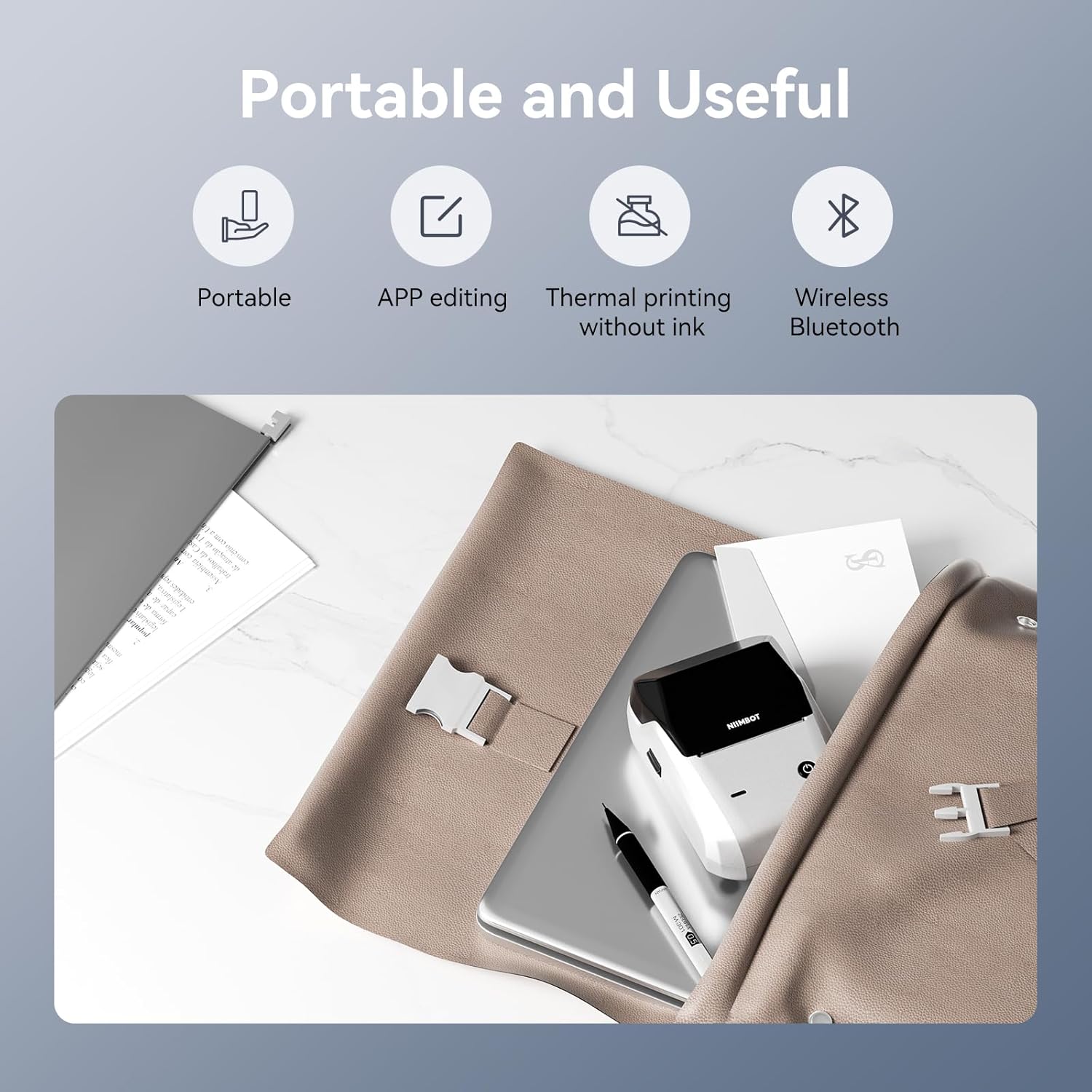
Hoto na 2.2: Ƙarsheview of the NIIMBOT B1's portable and useful features.
3. Saita
3.1 Loading Label Tape
- Rotate the side latch to open the tape slot.
- Load the label tape into the slot, ensuring the label side faces upwards.
- Adjust the guide plate to fit the label roll snugly.
- Close the tape slot, leaving a small portion of the label tape extending for smooth feeding.

Image 3.1: Proper installation of label tape in the NIIMBOT B1.
3.2 Shigarwa da Haɗin App
The NIIMBOT B1 requires the NIIMBOT app for smartphone operation.
- Download the NIIMBOT app from the App Store (iOS) or Google Play Store (Android). Bincika "NIIMBOT".
- Tabbatar cewa Bluetooth ɗin wayarka yana aiki.
- Open the NIIMBOT app and click "Connect" to search for nearby devices.
- Select your B1 printer from the list (e.g., B1-XXXXXX) to pair. If prompted for a pairing code, enter 0000 or 1234.
- Once connected, the app will automatically identify the label tape in the printer.

Image 3.2: NIIMBOT App download and connection process.
3.3 PC Connection (Windows)
For PC connectivity, you will need to download the driver from the official NIIMBOT website.
- Ziyarci NIIMBOT na hukuma website and download the B1 printer driver for Windows 7/10.
- Install the driver on your PC.
- Connect the NIIMBOT B1 printer to your PC using the provided USB Type-C cable.
- Open the NIIMBOT desktop software to begin printing.

Image 3.3: Connecting the NIIMBOT B1 to a PC via USB.
3.4 Quick Start Video Guide
Watch this video for a quick visual guide on setting up and using your B1 Label Maker.
Video 3.4: A quick start guide demonstrating the initial setup and basic operation of the NIIMBOT B1 Label Maker.
4. Umarnin Aiki
4.1 Creating and Editing Labels
- In the NIIMBOT app, select a template or create a new label.
- Use the various editing tools to add text, images, icons, barcodes, QR codes, and other elements.
- Customize font styles, sizes, alignment, and other layout options.
- The app supports features like OCR (Optical Character Recognition) for converting images to text.

Image 4.1: The NIIMBOT App interface for creating and editing labels.
4.2 Lakabin Bugawa
- After designing your label, click the "Print" button in the app.
- Adjust the number of copies and print density as needed.
- Confirm the print settings and initiate printing.
- The printer will automatically feed and print the labels. Gently tear off the printed labels.

Image 4.2: Smartphone printing process with the NIIMBOT B1.
4.3 Ma'anar Haske Mai Nuni
Understand the status of your printer through its indicator light:
- Filashin Blue: Firmware haɓakawa yana kan aiki.
- Blue Mai Tsaya: Printer is in standby mode.
- Koren Filashi: Printer is actively printing.
- Koren Tsaye: Bluetooth is successfully connected.
- Jajayen Filashi: Printer is charging.
- Ja a tsaye: Cover is open, out of paper, or low battery.

Image 4.3: Guide to the NIIMBOT B1 indicator light statuses.
4.4 Amfani Examples
The NIIMBOT B1 is versatile for various labeling needs:
- Amfanin Gida: Kitchen labels, gift labels, kids' item labels, trip item labels.
- Business Use: Beauty & personal care, DIY item labels, mail labels, perfume labels, bakery food labels.

Hoto 4.4: Examples of NIIMBOT B1 usage for home organization.

Hoto 4.5: Examples of NIIMBOT B1 usage for small businesses.

Hoto 4.6: Examples of labels for bakery and food products.
Video 4.7: Demonstration of the NIIMBOT B1 Label Maker's ease of use for various labeling tasks.
Bidiyo 4.8: Nunawaasing the multipurpose capabilities of the NIIMBOT B1 Label Maker for different applications.
5. Kulawa
5.1 Tsabtace Shugaban Buga
Regular cleaning of the print head ensures optimal print quality.
- Turn off the printer and disconnect the power cable.
- Bude sashin lakabin.
- Gently wipe the print head with a cotton swab lightly damptare da isopropyl barasa.
- Allow the print head to dry completely before closing the compartment and turning on the printer.
5.2 Kula da baturi
- Charge the printer regularly, even if not in frequent use, to maintain battery health.
- Avoid exposing the printer to extreme temperatures.
- Yi amfani da kebul na Type-C da aka bayar kawai don caji.
6. Shirya matsala
6.1 Batutuwa gama gari da Magani
| Batu | Dalili mai yiwuwa | Magani |
|---|---|---|
| Printer baya kunnawa | Ƙananan baturi; Ba a danna maballin wuta dadewa | Charge the printer; Press and hold the power button for 3 seconds. |
| Ba a iya haɗawa ta Bluetooth | Bluetooth off on phone; Printer not in pairing mode; App permissions | Ensure Bluetooth is on; Restart printer; Check app permissions for nearby devices. |
| Rashin ingancin bugawa | Dirty print head; Incorrect print density; Low battery | Clean the print head (see 5.1); Adjust print density in the app; Charge the printer. |
| Alamun rashin ciyarwa daidai | Incorrect label installation; Guide plate not adjusted | Reinstall label tape correctly (see 3.1); Adjust the guide plate to fit the label roll. |
| Printer not recognized by PC | Driver not installed; Faulty USB cable | Install the correct PC driver (see 3.3); Try a different USB cable. |
7. Ƙayyadaddun bayanai
| Siffar | Daki-daki |
|---|---|
| Sunan Samfura | B1 |
| Fasahar Bugawa | Thermal |
| Haɗuwa | Bluetooth, USB |
| Max Print Resolution | 203 dpi |
| Matsakaicin Saurin Buga (Monochrome) | 15 mm/s |
| Matsakaicin Girman Mai jarida | 2 inch (50mm) |
| Na'urori masu jituwa | Smartphone (Android & iOS), PC (Windows 7/10) |
| Nauyin Abu | 1.1 fam (499 grams) |
| Girman samfur | 5.5"D x 3.5"W x 2.5"H |
| Baturi | Ana buƙatar baturi 1 (an haɗa) |
| Takamaiman Amfani | Labeling for Small Business Product Price/Address, School and Office Files Classification, Home Supplies Organization, Personal Item Identification, Name Tags and Warehouse |
8. Garanti da Tallafawa
8.1 Bayanin Garanti
The NIIMBOT B1 Label Printer comes with a 1-year warranty coverage. Please retain your proof of purchase for warranty claims.
8.2 Tallafin Abokin Ciniki
For further assistance, technical support, or warranty inquiries, please contact NIIMBOT customer service through their official webshafin ko bayanin tuntuɓar da aka bayar tare da fakitin samfur naka.


