1. Gabatarwa
The Thermal Master X2 is a high-performance thermal imaging monocular designed for use with Android smartphones. It offers advanced thermal detection capabilities, making it suitable for a wide range of applications including hunting, wildlife observation, wilderness rescue, home inspections, and electrical diagnostics. This manual provides detailed instructions on setting up, operating, and maintaining your X2 thermal camera to ensure optimal performance and longevity.
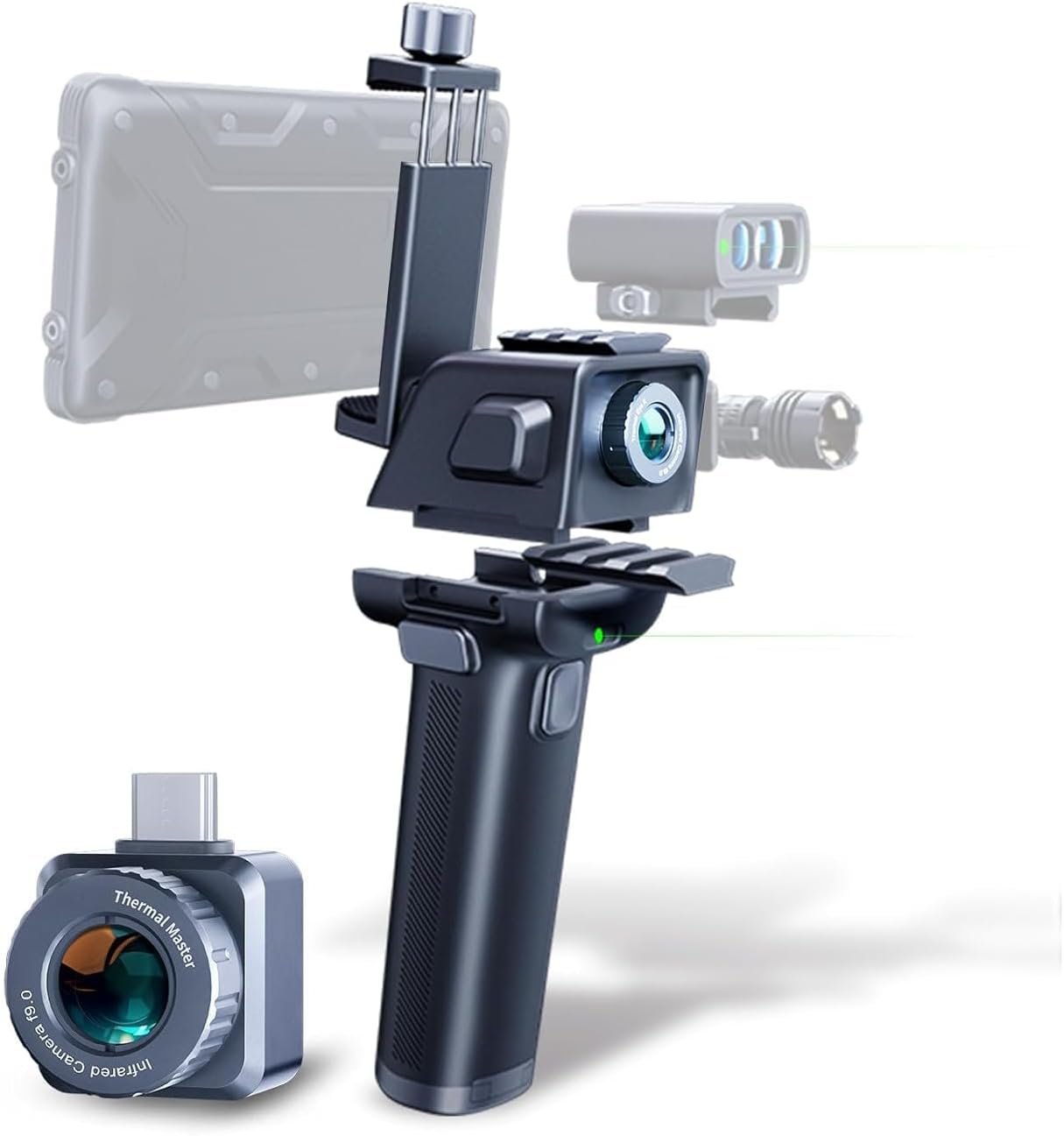
Figure 1.1: The Thermal Master X2 Thermal Camera system, showing the main camera module, the power handle, and a smartphone mount. The camera can be used independently or integrated with the handle for enhanced usability.
2. Kayan Samfura
- Faɗin Ganowa Mai Tsayi: The X2 boasts a detection range of up to 950 yards, allowing for long-distance observation of heat signatures.
- X³ Super Algorithm: This advanced algorithm enhances the infrared (IR) resolution from 256×192 to 512×384, providing ultra-clear and sharp thermal images. It incorporates Razor X and TEMP IQ+ technologies for a high sensitivity of 40mk, detecting temperature changes as small as 0.04℃.
- Babban Tsari: With a 50Hz high frame rate, the X2 delivers smooth and fluid imaging, crucial for tracking fast-moving targets without lag.
- 15X Zuƙowa Dijital: Users can digitally zoom in from 1x to 15x, allowing for detailed inspection of distant objects.
- Gina Mai Dorewa: Featuring an all-metal body and an IP65 rating, the X2 is designed to withstand heavy rain and harsh environmental conditions.
- Transformer Kit: The X2 is compatible with the "Transformer" accessory, which extends battery life up to 18 hours and offers 20 modification options, including integration with a compound bow, laser rangefinder, flashlight, and tactical helmet.

Figure 2.1: Demonstration of the X³ Super Algorithm, illustrating the enhanced 512x384 IR resolution compared to the standard 256x192 resolution.

Figure 2.2: The 15x digital zoom feature in action, allowing users to magnify thermal images for closer inspection of subjects like birds on a tree.
3. Saita
3.1 Unboxing da abubuwan da aka gyara
Bayan buɗe kunshin, tabbatar da duk abubuwan da aka gyara suna nan:
- Thermal Master X2 Camera Module
- Power Handle (Transformer)
- Smartphone Dutsen
- USB-C USB
- Jagorar mai amfani (wannan takaddar)
- Harkar Dauka
Note: The X2 camera module is typically placed inside the handle during shipping. Check the handle if the main zipper bag appears empty.
3.2 Girkawar App
The Thermal Master X2 requires the "Thermal Master" application to function with your Android smartphone. Download the official app from the Google Play Store:
Bincika "Thermal Master" in the Google Play Store or visit the official download page via your device's browser.

Figure 3.1: The "Thermal Master" application available for download on Android devices.
3.3 Dacewar Na'urar
The Thermal Master X2 is designed for Android phones. It is crucial that your Android device supports OTG (On-The-Go) functionality. Without OTG support, the camera will not be able to connect and communicate with your phone. Please verify your phone's OTG compatibility before use.
3.4 Connecting the X2
- Ensure the "Thermal Master" app is installed on your Android phone.
- Carefully insert the USB-C connector of the X2 camera module into your smartphone's USB-C port.
- If using the Transformer handle, attach the X2 camera module to the handle, and then mount your smartphone onto the handle's phone clamp. The handle provides power and stability.
- Launch the "Thermal Master" app. The app should automatically detect and connect to the X2 camera.

Figure 3.2: The X2 camera module connected to an Android smartphone, displaying a thermal image comparison.
4. Umarnin Aiki
4.1 Basic Operation and App Interface
Once connected, the Thermal Master app will display the live thermal feed. The app interface provides various controls for adjusting settings, capturing images/videos, and analyzing thermal data. Familiarize yourself with the on-screen icons for different functions.
4.2 Zoom Functionality
The X2 supports 1x to 15x digital zoom. To adjust the zoom level, simply use a two-finger pinch-to-zoom gesture directly on your smartphone's screen within the Thermal Master app.
4.3 Image Enhancement and Sensitivity
The X2 utilizes the X³ Super Algorithm, Razor X, and TEMP IQ+ technologies to deliver high-quality thermal images. These features work automatically to optimize image clarity and detect subtle temperature variations (down to 0.04℃).

Figure 4.1: The Thermal Master High Sensitivity Core, which powers the X³ Super Algorithm for enhanced thermal imaging.
4.4 Yanayin Nuni da Palettes Launi
The app offers various display modes and color palettes to suit different observation needs:
- Yanayin HD: Provides more image details, ideal for winter conditions.
- Yanayin Haskakawa: Makes targets stand out more, suitable for summer conditions.
- 9 Professional Reticles: Various reticle options for precise targeting and measurement.
- 7 Color Palettes: Choose from White Bird, Black Bird, White Hot, Black Hot, Red Hot, Iron Rain, and Rain Bow to visualize thermal data differently.

Figure 4.2: HD and Highlight modes for optimized image detail and target visibility.

Figure 4.3: Selection of 9 professional reticles for various applications.

Figure 4.4: The 7 available color palettes for thermal visualization.
4.5 Transformer Kit Usage
The Transformer kit enhances the X2's functionality and battery life. It provides up to 18 hours of operation and allows for integration with various accessories. The kit includes a power handle and a Titan Pad (optional) with inbuilt refit bolt holes for attaching additional equipment like a laser rangefinder or flashlight.

Figure 4.5: Components of the Transformer kit, including the power handle and optional accessories.
To use the Transformer kit:
- Insert the X2 camera module into the designated slot on the Transformer power handle.
- Mount your smartphone securely onto the adjustable clamp a kan rike
- Connect the X2 to your phone via the USB-C cable. The handle will provide power to the X2 and your phone.
- Optional accessories like laser rangefinders or flashlights can be attached to the rails or Titan Pad (if acquired separately).
4.6 Aikace-aikace
The Thermal Master X2 is versatile and can be used in various scenarios:
- Hunting & Wildlife Observation: Easily spot animals like coyotes, deer, raccoons, and waterfowl at night or in dense foliage.
- Wilderness Rescue & Camping: Detect individuals or potential threats in low-visibility conditions, enhancing safety during outdoor activities.
- Duban Gida: Identify insulation gaps, drafts, moisture issues, and electrical hotspots within your home.
- Binciken Lantarki: Pinpoint overheating components in electrical panels or circuits.
- Binciken PCB: Analyze heat distribution on printed circuit boards for diagnostics and design optimization.
Hoto na 4.6: Examples of industrial and home inspection applications.
Hoto na 4.7: Examples of outdoor and rescue applications.
5. Kulawa
5.1 Tsaftacewa
- Lens na kyamara: Gently wipe the thermal lens with a soft, lint-free cloth. For stubborn smudges, use a lens cleaning solution specifically designed for optics. Avoid abrasive materials or harsh chemicals.
- Jikin Na'ura: Clean the all-metal body and handle with a damp cloth. Do not submerge the device in water, despite its IP65 rating, to prevent damage to internal components or the USB-C port.
5.2 Adana
When not in use, store the Thermal Master X2 in its provided carrying case. Keep it in a cool, dry place, away from direct sunlight, extreme temperatures, and high humidity. This helps preserve the device's components and battery life.
5.3 Kula da baturi
The X2 uses a Lithium Ion battery (included, likely within the Transformer handle). To maximize battery lifespan:
- Cajin baturi cikakke kafin fara amfani dashi.
- Ka guji zubar da baturin gaba daya kafin a yi caji.
- Idan ana adanawa na tsawon lokaci, yi cajin baturin zuwa kusan iya aiki 50%.
- Use only the provided USB-C cable and a compatible power adapter for charging.
6. Shirya matsala
| Matsala | Dalili mai yiwuwa | Magani |
|---|---|---|
| Device not connecting to phone / App not detecting X2. |
|
|
| Poor image clarity or unexpected thermal readings. |
|
|
| Short battery life with Transformer kit. |
|
|
If you encounter issues not listed here or require further assistance, please refer to the Warranty and Support section.
7. Ƙayyadaddun bayanai
| Siffar | Daki-daki |
|---|---|
| Lambar Samfura | X2 Android |
| Ƙudurin IR | 256×192 (Native), 512×384 (with X³ Super Algorithm) |
| Tsawon Hankali | 9mm ku |
| Matsakaicin Tsari | 50Hz |
| Rage Ganewa | Har zuwa yadi 950 |
| Zowar Dijital | 1X - 15X |
| Sarfin zafi | 40mk (0.04℃) |
| Ƙimar Ɗaukar Bidiyo | 1080p |
| Nau'in Mai jarida | Micro SD Card (for storage via phone) |
| Tushen wutar lantarki | 1 Lithium Ion battery (included, within Transformer) |
| Battery Life (with Transformer) | Har zuwa awanni 18 |
| Ƙididdiga ta Ingress (IP). | IP65 (Tsarin ƙura kuma an kiyaye shi daga jiragen ruwa) |
| Nauyin Abu | 2.25 fam |
| Girman Kunshin | 9.92 x 8.39 x 3.58 inci |
| Mai ƙira | Thermal Master |
| Kwanan Wata Farko Akwai | Disamba 27, 2024 |

Figure 7.1: Key specifications of the Thermal Master X2, including focal length, IR resolution, zoom, and frame rate.
8. Garanti da Tallafawa
Thermal Master products are manufactured to high-quality standards. For specific warranty information regarding your X2 Thermal Camera, please refer to the warranty card included in your product packaging or visit the official Thermal Master website.
For technical support, troubleshooting assistance, or inquiries about replacement parts and accessories, please contact the manufacturer directly or reach out to the authorized seller from whom you purchased the product. The seller "Thermal Master Official" on Amazon can be contacted for support related to your purchase.
No official seller videos were found for this product to embed in this manual.


