
1. Gabatarwa
This manual provides comprehensive instructions for the setup, operation, maintenance, and troubleshooting of your NIIMBOT D11 New Version Label Maker Machine. Please read this manual thoroughly before using the device to ensure proper function and safety.

Image: The NIIMBOT D11 label maker, shown with several rolls of label tape and a smartphone displaying the NIIMBOT app interface.
2. Bayanin Tsaro
To prevent injury or damage to the device, observe the following safety precautions:
- Keep the product and its accessories away from children. Adult supervision is required if children use the device.
- Do not expose the product or power adapter to high temperatures or high humidity.
- This product contains batteries. Do not disassemble, impact, squeeze, or place the device at high temperatures.
- If the product exhibits any anomaly (e.g., overheating, short circuit), discontinue use immediately.
3. Abubuwan Kunshin
Tabbatar cewa duk abubuwa suna nan a cikin kunshin ku:
- NIIMBOT D11 Label Maker Machine
- 3 Rolls of Label Tape (14x30mm clear, 14x40mm white, 12x40mm green)
- USB-C Cajin Cable
- Manual mai amfani
4. Samfurin Ya Ƙareview da Features
The NIIMBOT D11 is a portable thermal label printer designed for various organizational needs. It offers enhanced clarity and efficiency.
Mabuɗin fasali:
- Babban Tsari: 300 dpi for clear text and images.
- Karamin Tsara: Smaller and more portable than traditional label makers.
- Daidaitawa ta atomatik: Prevents waste of the first label.
- Saurin Bugawa: Up to 50mm/s print speed.
- Fitar Monochrome: Prints black text only.
- Haɗin Bluetooth: Connects wirelessly to mobile devices via the NIIMBOT app.
- Tallafin Na'ura da yawa: Allows up to 6 mobile phones to connect simultaneously.
- Versatile App: Offers various templates, texts, symbols, logos, barcodes, QR codes, and image integration.
- Faɗin Aikace-aikacen: Suitable for home organization, small business, school, and office use.

Image: A visual comparison highlighting the smaller size and improved specifications (1500mAh battery, 300dpi, Type-C, 50mm/s) of the D11_H model compared to the D11.

Image: A close-up demonstrating the clarity of 300 dpi high-resolution thermal printing from the NIIMBOT D11_H compared to a lower resolution print.
5. Jagorar Saita
5.1 Cajin Na'urar
Before first use, fully charge the label maker. The device uses a Type-C charging port.
- Connect the provided USB-C cable to the charging port on the label maker.
- Connect the other end of the cable to a USB power adapter (not included) or a computer USB port.
- The indicator light will show charging status. A full charge typically takes 1-2 hours and provides approximately 5 hours of working time.

Image: An illustration detailing the Type-C fast charging capability of the NIIMBOT D11, indicating a full charge in 1-2 hours for 5 hours of operation.
5.2 Installing the Label Roll
- Open the cover of the label maker.
- Insert the label roll into the compartment, ensuring the printing side of the label faces upwards and the first label extends slightly out of the printer slot.
- Close the cover securely. The printer will automatically calibrate the label position.

Image: A visual explanation of the NIIMBOT D11's automatic calibration feature, showing how it rewinds the first label to prevent waste during printing.
5.3 Downloading the NIIMBOT App
The NIIMBOT D11 operates exclusively with the NIIMBOT mobile application.
- Scan the QR code on the product packaging or search for "NIIMBOT" in your device's app store (App Store for iOS, Google Play Store for Android).
- Zazzage kuma shigar da aikace-aikacen.
5.4 Haɗa ta Bluetooth
- Tabbatar cewa an kunna Bluetooth akan na'urar tafi da gidanka.
- Open the NIIMBOT application.
- Within the app, search for and select your NIIMBOT D11 printer to pair. The printer's indicator light will confirm a successful connection.
Note: The NIIMBOT D11 only supports mobile Bluetooth connections and is not compatible with computers or tablets.

Image: A diagram illustrating the NIIMBOT D11's capability to connect to multiple smartphones (up to 6) via Bluetooth through the NIIMBOT/NIIM App.
6. Aiki
6.1 Using the NIIMBOT App
The NIIMBOT app provides a user-friendly interface for label creation.
- Samfura: Access a variety of pre-designed templates for different uses.
- Rubutu: Input custom text with various fonts and sizes.
- Symbols & Icons: Choose from a library of symbols and icons to enhance your labels.
- Lambobin Barcode & QR: Generate and print barcodes or QR codes.
- Hotuna: Insert simple images onto your labels.
- Lokaci & Kwanan Wata: Add current time or date stamps.

Image: A smartphone screen displaying the NIIMBOT app interface, showcasing options for adding text, symbols, logos, barcodes, QR codes, images, and time to labels.

Image: A visual representation of the NIIMBOT Multi-Function APP, highlighting features such as borders, barcode/QR code generation, various icons, and font selection.
6.2 Creating and Editing Labels
- Open the NIIMBOT app and ensure your printer is connected.
- Select a new label or choose an existing template.
- Use the app's editing tools to add text, symbols, images, or other elements.
- Adjust font size, style, and alignment as needed.
6.3 Lakabin Bugawa
- After designing your label, tap the "Print" button in the app.
- Confirm the number of copies.
- The label maker will print the labels. Manually tear off the printed label from the printer's output slot.
Note: The D11 uses fixed-length labels and does not support continuous label tape.

Image: A woman using the NIIMBOT D11 label maker, holding a smartphone displaying the app, with printed labels and gift boxes in the background.
6.4 Yanayin Aikace-aikace
The NIIMBOT D11 is suitable for a variety of labeling tasks:
- Ƙungiyar Gida: Labeling kitchen containers, storage boxes, personal items.
- Small Business: Farashin tags, product labels, inventory management.
- Ofishi & Makaranta: File classification, name tags, stationery labeling.

Image: A collage showing the versatility of the NIIMBOT D11, with labels used for kitchen items, medication reminders, and office organization.
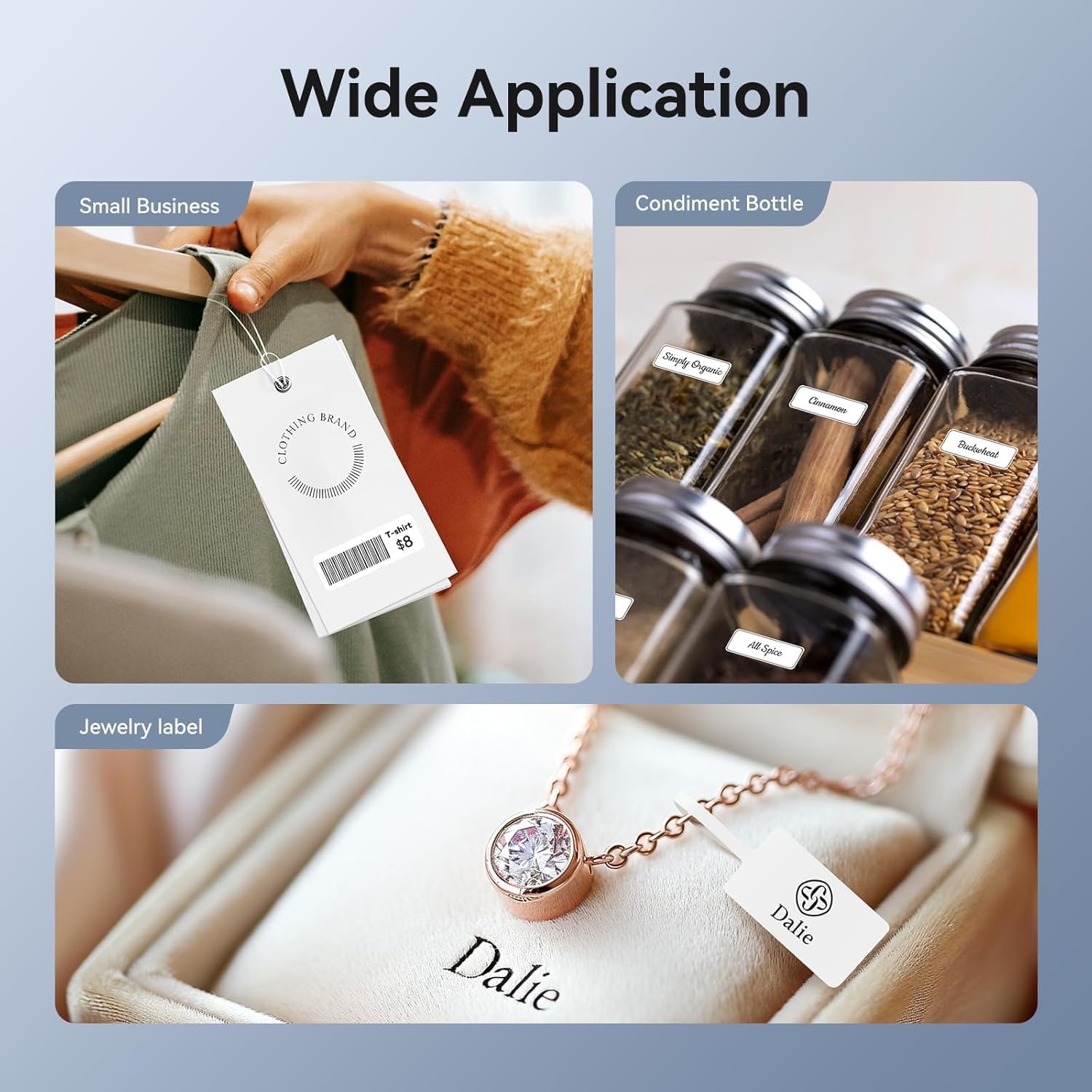
Hoto: Examples of the NIIMBOT D11's wide application, including labels for small business clothing tags, condiment bottles, and jewelry.
7. Kulawa
7.1 Share Printer
Regular cleaning helps maintain print quality and extends the life of your device.
- Ensure the printer is turned off before cleaning.
- Use a soft, dry, lint-free cloth to wipe the exterior of the printer.
- Gently clean the print head with an alcohol wipe or a cotton swab lightly dampened with isopropyl alcohol. Allow it to dry completely before use.
7.2 Kula da baturi
- Guji cikar cajin baturin akai-akai.
- Store the device in a cool, dry place if not used for extended periods.
- Charge the device periodically (e.g., every 3 months) to prevent deep discharge.
7.3 Ajiya Mai Lakabi
Store label rolls in a cool, dry place away from direct sunlight to preserve their adhesive and print quality.

Image: A visual representation of NIIMBOT label durability, highlighting their waterproof, oil-proof, and scratch-resistant qualities for better printing experience.
8. Shirya matsala
If you encounter issues with your NIIMBOT D11, refer to the following common problems and solutions:
| Matsala | Dalili mai yiwuwa | Magani |
|---|---|---|
| No print or blank labels | Label roll inserted incorrectly; printer out of labels; low battery. | Ensure label roll is inserted with printing side up. Replace label roll. Charge the device. |
| Unclear or faded print | Print head is dirty; low battery. | Clean the print head (see Maintenance section). Charge the device. |
| Ba za a iya haɗi ta Bluetooth ba | Bluetooth not enabled; app not open; device too far; attempting to connect to computer/tablet. | Ensure Bluetooth is on. Open NIIMBOT app. Move device closer. Remember, only mobile connections are supported. |
| First label wasted | Automatic calibration not functioning. | Ensure the label roll is properly seated and the cover is closed. Restart the printer and app. |
| Na'urar baya amsawa | Device frozen; low battery. | Press and hold the power button to restart. Charge the device. |
Muhimman Bayanan kula:
- The NIIMBOT D11 is a monochrome printer and only prints in black text. It cannot print in color.
- The label maker uses fixed-length labels and does not support continuous label tape.
9. Ƙayyadaddun bayanai
| Siffar | Ƙayyadaddun bayanai |
|---|---|
| Tsarin Model | D11 |
| Lambar Samfurin Abu | D11_H-3Roll |
| Fasahar Bugawa | Thermal |
| Fitar da firinta | Monochrome (Black Ink) |
| Matsakaicin Ƙimar bugawa | 300 dpi |
| Matsakaicin Gudun bugawa | 50 mm/s |
| Fasahar Haɗuwa | Bluetooth |
| Girman samfur | 1.18 x 3 x 4.33 inci |
| Nauyin Abu | 12.3 oz |
| Baturi | 1 Baturi (an haɗa) |
| Matsakaicin Girman Mai jarida | 14*40mm |
| Supported Sheet Sizes | 14*30mm, 14*40mm, 12*40mm |
| Matsakaicin ƙarfin Sheet ɗin shigarwa | 20 |
| Buga mai gefe biyu | A'a (Simple) |
| Siffa ta Musamman | Mai ɗaukar nauyi |

Image: The rear packaging of the NIIMBOT D11, displaying multi-language warnings, product specifications, and compliance marks.
10. Garanti Bayani
The NIIMBOT D11 Label Maker Machine comes with a limited warranty. Please refer to the warranty card included in your package or contact customer support for detailed terms and conditions.
11. Tallafin Abokin Ciniki
For technical assistance, product inquiries, or warranty claims, please contact NIIMBOT customer support:
- Taimakon Imel: service@niimbot.com
- Na hukuma Website: www.niibot.com


