1. Gabatarwa
This manual provides comprehensive instructions for the installation, operation, maintenance, and troubleshooting of your NIVIAN Professional WiFi SuperHD Surveillance Camera Kit. This system is designed to provide reliable and efficient security monitoring for your home or business.
Please read this manual carefully before using the product to ensure proper setup and optimal performance. Keep this manual for future reference.
2. Samfurin Ya Ƙareview
The NIVIAN CCTV Kit is a professional 2K SuperHD WiFi surveillance system featuring 6 IP cameras and a 10-channel Network Video Recorder (NVR) with a pre-installed 1TB hard drive. Key features include:
- 2K SuperHD Image Resolution: Yana ba da fayyace kuma cikakkun bayanai footage (3MP).
- Ganewar Dan Adam: Intelligent motion detection to reduce false alarms.
- Audio Hanyoyi Biyu: Makirifo da aka gina a ciki da lasifikar don sadarwa ta ainihi.
- Dual Night Vision: Infrared mode for discreet monitoring and white LED mode for full-color night vision activated by motion.
- WiFi-6 Long Range Connectivity: Stable wireless connection up to 250 meters with repeater function.
- Kyamarorin IP66 masu hana yanayi: Karfe mai dorewa casing suitable for outdoor use.
- Ƙwararriyar Rikodi: Continuous or event-based recording to the included 1TB hard drive.
- HDMI fitarwa: Connect to a monitor or TV for live viewing.
- EseeCloud App: Remote access and control from mobile devices.
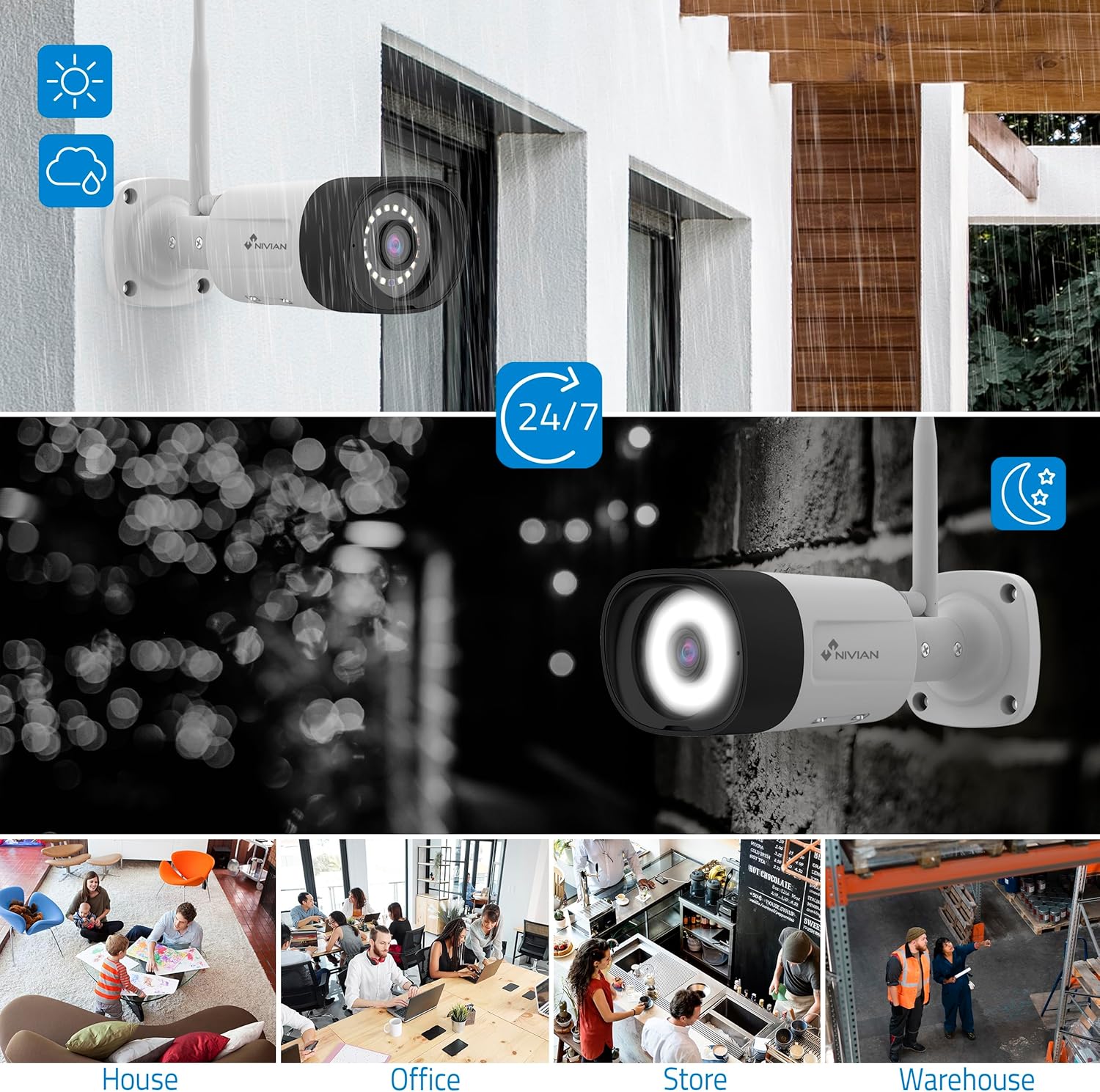
Image: NIVIAN CCTV Camera with day and night vision capabilities, showing weatherproof design and application in various environments like house, office, store, and warehouse.

Image: Comparison of 1080p Full HD video quality versus 2K Super HD video quality, demonstrating enhanced detail with 2K resolution.
3. Abubuwan Kunshin
Tabbatar cewa duk abubuwa suna nan a cikin kunshin ku:
- 1x 10-Channel NVR (Network Video Recorder) with 1TB Hard Drive
- 6x NIVIAN 2K SuperHD WiFi IP Cameras
- Power Adapters for NVR and Cameras
- Kebul na USB
- Ethernet Cable
- Sukurori da Filogi
- Jagoran Farawa Mai sauri (duba wannan jagorar don cikakkun bayanai)
4. Saita
4.1. NVR Installation
- Haɗa NVR:
- Connect the NVR to a power outlet using the provided power adapter.
- Connect the NVR to a monitor or TV via the HDMI port for local viewing.
- Connect the USB mouse to the NVR's USB port.
- For internet access, connect the NVR to your router using the Ethernet cable.
- Kunna Wuta: Turn on the NVR. Follow the on-screen prompts for initial setup, including language selection and network configuration.
4.2. Shigar da Kamara
- Wurin Hauwa: Choose suitable locations for your cameras, ensuring they have a clear field of view and are within range of the NVR's WiFi signal. The IP66 rating allows for outdoor installation.
- Ƙarfafa kyamarori: Connect each camera to a power outlet using its dedicated power adapter.
- Pairing (Automatic): The cameras are pre-paired with the NVR. Once powered on, they should automatically connect to the NVR's WiFi network. You will see the camera feeds appear on the connected monitor.
- Signal Repetition Function: If a camera is too far from the NVR, you can use another camera as a repeater to extend the WiFi range up to 250m. Refer to the NVR's on-screen menu for configuring this feature.

Image: Diagram illustrating various connection options for the NIVIAN CCTV system, including direct WiFi-6 connection to NVR, HDMI output to a monitor, and NVR connection to a router via LAN for remote access via Eseecloud app. Also shows signal repetition function.
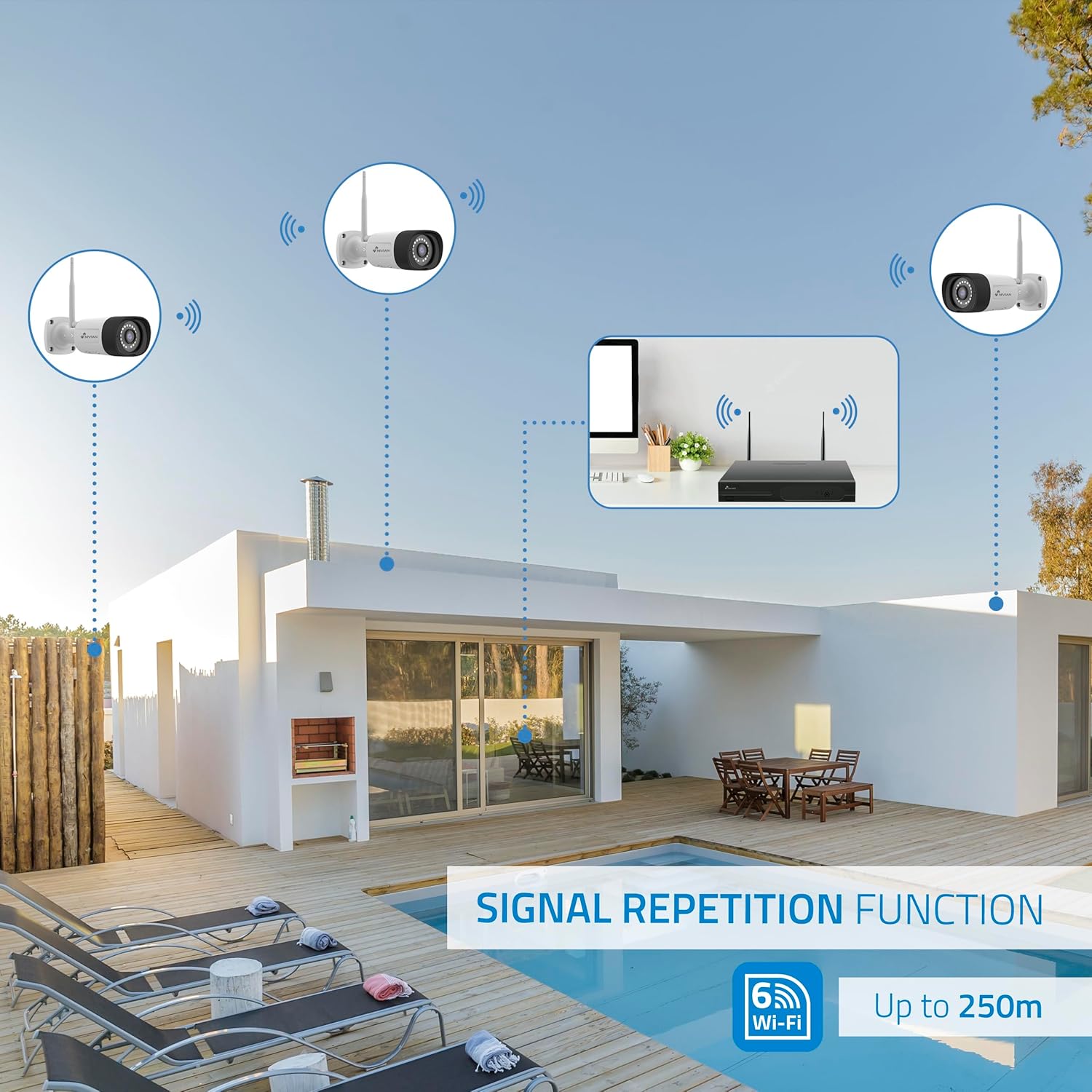
Image: Diagram showing the signal repetition function of the NIVIAN WiFi CCTV system, where cameras can extend the WiFi range up to 250 meters from the NVR.
4.3. EseeCloud App Setup
- Zazzage App: Download the "EseeCloud" app from your mobile device's app store (available for iOS, Android).
- Asusun Rijista: Buɗe manhajar kuma yi rijistar sabon asusu ko shiga idan kana da ɗaya.
- Ƙara Na'ura: Follow the in-app instructions to add your NVR system. This typically involves scanning a QR code displayed on the NVR's monitor or entering the device ID manually.
- Nisa Viewing: Once added, you can view live feeds, access recordings, and configure settings remotely.

Image: Smartphone screen displaying the EseeCloud app interface for managing the security system, showing live camera feeds and control options, with NIVIAN cameras and a laptop in the background.
5. Umarnin Aiki
5.1. Rayuwa View
Access live camera feeds through the NVR connected to a monitor or via the EseeCloud mobile app. The NVR interface allows you to switch between single-camera view and multi-camera grid view.
5.2. Rikodi
- Ci gaba da Rikodi: The system is configured for continuous recording by default to the 1TB hard drive.
- Rikodin Gano motsi: Configure cameras to record only when motion is detected. This can be scheduled via the NVR settings or EseeCloud app.
- H.265+ Codec: The system uses H.265+ video compression to optimize storage space while maintaining video quality.
5.3. Sake kunnawa
Rikodin shiga footage through the NVR's playback menu or the EseeCloud app. You can search recordings by date, time, and event type (e.g., motion detection).
5.4. AI Human Detection
The cameras feature advanced AI human detection to differentiate human movement from other objects, significantly reducing false alarms. When human motion is detected, the system can trigger recordings, send notifications, and activate the white LED night vision for color footage.

Image: NIVIAN camera detecting a person at night, with the white LED light activated for color night vision, and a mobile notification indicating motion detection.
5.5. Audio Hanyoyi Biyu
Use the EseeCloud app to utilize the two-way audio feature. This allows you to listen to audio from the camera's location and speak through the camera's built-in speaker.
5.6. Yanayin Ganin Dare
- Infrared (IR) Mode: Provides black and white video in low-light conditions for discreet surveillance.
- White LED Mode: When motion is detected in low light, the camera's white LEDs activate, providing full-color video and acting as a deterrent.
6. Kulawa
- Tsaftace Kyamara: A kullum a tsaftace ruwan tabarau na kyamara da laushi, damp cloth to ensure clear image quality. Do not use harsh chemicals.
- Sabunta Firmware: Check for firmware updates for the NVR and cameras through the EseeCloud app or NVR settings. Keep your system updated for optimal performance and security.
- Gudanar da Hard Drive: The 1TB hard drive will automatically overwrite the oldest recordings when full. If you need to preserve specific footage, back it up to an external device.
- Duban Samar da Wuta: Ensure all power adapters are securely connected and free from damage.
7. Shirya matsala
7.1. No Camera Feed
- Duba Power: Ensure the camera is powered on and its adapter is working.
- Siginar WiFi: Verify the camera is within the NVR's WiFi range. Use the signal repetition function if necessary.
- Re-pair Camera: If issues persist, try re-pairing the camera with the NVR through the NVR's menu.
7.2. Poor Image Quality
- Tsaftace Lens: A tsaftace ruwan tabarau na kyamara don duk wani datti ko ƙura.
- Haske: Ensure adequate lighting for optimal image quality, especially at night.
- Tsangwama ta WiFi: Reduce potential WiFi interference by moving the camera or NVR, or by using the signal repetition function.
7.3. Remote Access Issues (EseeCloud App)
- Haɗin Intanet: Ensure both your NVR and mobile device have a stable internet connection.
- NVR Network Settings: Verify the NVR is correctly connected to your router and has internet access.
- Sigar App: Ensure your EseeCloud app is updated to the latest version.
7.4. Hard Drive Full / Recording Issues
- Check Storage: Verify the hard drive status in the NVR settings.
- Jadawalin Rikodi: Ensure recording schedules are correctly configured.
- Lafiyar Hard Drive: If issues persist, the hard drive may need to be checked or replaced.
8. Ƙayyadaddun bayanai
| Alamar | NIVIAN |
| Lambar Samfura | NV-KIT830W-8CAM |
| Girman samfur (L x W x H) | 23 x 12 x 8 cm; 6.2 kg |
| Fasahar Haɗuwa | Wireless (WiFi-6) |
| Ƙimar Rikodin Bidiyo | 2K (3MP) |
| Yawan Tashoshi | 10 (NVR) |
| Yawan kyamarori | 6 |
| Ƙarfin ajiya | 1 TB Hard Drive (included) |
| Siffofin kamara | IP Cameras SuperHD with PTZ, Night Vision, AI Human Detection, Two-Way Audio |
| Matsakaicin Tsari | 15fps, 24fps, 30fps |
| Na'urori masu jituwa | Television (via HDMI) |
| Nau'in Plug Power | Dutsen bango |
| Asalin Kasar | China |
9. Garanti da Tallafawa
NIVIAN offers technical support to all customers. If you have any questions, suggestions, or encounter any issues with your WiFi surveillance camera kit, please do not hesitate to contact us.
You can reach us through Amazon messages or via any official NIVIAN brand channel. Please refer to your purchase documentation for specific warranty terms and contact details.


