1. Gabatarwa
Thank you for choosing the Tibuta Android 13 Tablet. This manual provides essential information to help you set up, operate, and maintain your device. Please read this manual carefully before using your tablet to ensure optimal performance and longevity.
2. Abin da ke cikin Akwatin
Da zarar an cire kayan, tabbatar da cewa an haɗa duk waɗannan abubuwan:
- Tibuta Android 13 Tablet
- Caja
- Kebul na USB
- Jagorar mai amfani (wannan takarda)
- Katin Garanti
3. Samfurin Ya Ƙareview
Familiarize yourself with the physical components of your Tibuta tablet.

Figure 3.1: Tablet Components (Side View)
This image illustrates the location of the power button, Type-C port, volume controls, Micro SD card slot, camera, reset button, headphone jack, and speakers on the tablet's exterior.

Figure 3.2: Tablet Components (Front and Back View)
Wannan hoton yana ba da cikakken bayani view of the tablet, highlighting the speaker, front camera, reset button, volume controls, power button, 3.5mm headphone jack, rear camera, SD card slot, and Type-C port. It also shows the included power adapter and Type-C cable.
4. Saita
4.1 Fara Cajin
Before first use, fully charge your tablet using the provided charger and USB cable. Connect the Type-C cable to the tablet's Type-C port and the charger to a power outlet. The battery indicator on the screen will show charging progress.
4.2 Kunnawa / Kashewa
- Don Kunnawa: Press and hold the Power button (refer to Figure 3.1 or 3.2) until the screen lights up.
- Don Kashe: Press and hold the Power button until a menu appears. Select 'Power off' and confirm.
- Don Sake farawa: From the same menu, select 'Restart'.
4.3 Kanfigareshan Farko
Upon first power-on, follow the on-screen prompts to set up your tablet. This includes selecting your language, connecting to a Wi-Fi network, and signing in with your Google account. A Google account is required to download apps from the Google Play Store.
4.4 Saka Micro SD Card
To expand storage, insert a Micro SD card (up to 1TB, not included) into the Micro SD card slot (refer to Figure 3.1 or 3.2). Ensure the tablet is powered off before inserting or removing the card.
5. Umarnin Aiki
5.1 Navigation na asali
The tablet features a sensitive touchscreen. Use standard Android gestures:
- Taɓa: Zaɓi abu ko buɗe app.
- Doke shi gefe: Scroll through pages or lists.
- Tsunkule: Zuƙowa ko rage hotuna da kuma web shafuka.
- Dogon Latsa: Samun dama ga menu na mahallin ko matsar da gumaka.
5.2 Haɗa zuwa Wi-Fi
Je zuwa Saituna > Network & intanit > Wi-Fi. Turn on Wi-Fi, select your desired network, and enter the password if prompted. The tablet supports 2.4G and 5G Wi-Fi (802.11ac, 802.11b, 802.11g, 802.11n).
5.3 Haɗin Bluetooth
To connect Bluetooth devices (e.g., headphones, keyboard, mouse):
- Je zuwa Saituna> Na'urorin da aka haɗa> Zaɓuɓɓukan haɗi> Bluetooth.
- Kunna Bluetooth.
- Tabbatar cewa na'urarka ta Bluetooth tana cikin yanayin haɗin kai.
- Select your device from the list and follow any on-screen instructions to complete pairing.
5.4 Amfanin Kamara
The tablet is equipped with a 5MP front camera and an 8MP rear camera. Open the Camera app to capture photos and videos. The rear camera features PDAF Phase Auto-focus and an LED flash.

Figure 5.1: Camera and Split-Screen Functionality
This image demonstrates the tablet's dual camera capabilities for capturing moments and its split-screen feature for multitasking, such as video calls while viewtakardun shaida.
5.5 Split-Screen Function
The Android 13 operating system supports split-screen mode, allowing you to use two applications simultaneously. To activate, open an app, then swipe up from the bottom of the screen to access recent apps. Long-press the app icon at the top of the window and select 'Split screen'. Choose a second app to open alongside it.
5.6 Keɓancewa da Keɓancewa
Android 13 offers extensive customization options. You can personalize your tablet by changing wallpapers, adding widgets to your home screen, and organizing app icons to suit your preferences.
Figure 5.2: Customizable Interface
This image highlights the ability to customize widgets and change app icons, allowing users to personalize their tablet experience.
5.7 Eye Protection Mode
To reduce eye strain, especially during prolonged use, activate the eye protection mode. This feature reduces the amount of blue light emitted by the screen. You can usually find this option in the Quick Settings panel or under Saituna > Nuni.
Figure 5.3: Eye Protection Feature
This image demonstrates the tablet's eye protection mode, which reduces blue light to prevent discomfort during extended viewing.
5.8 Hasashen Waya mara waya
The tablet supports wireless projection, allowing you to cast your screen to compatible larger display devices such as smart TVs or projectors. This is ideal for presentations or sharing media with others.
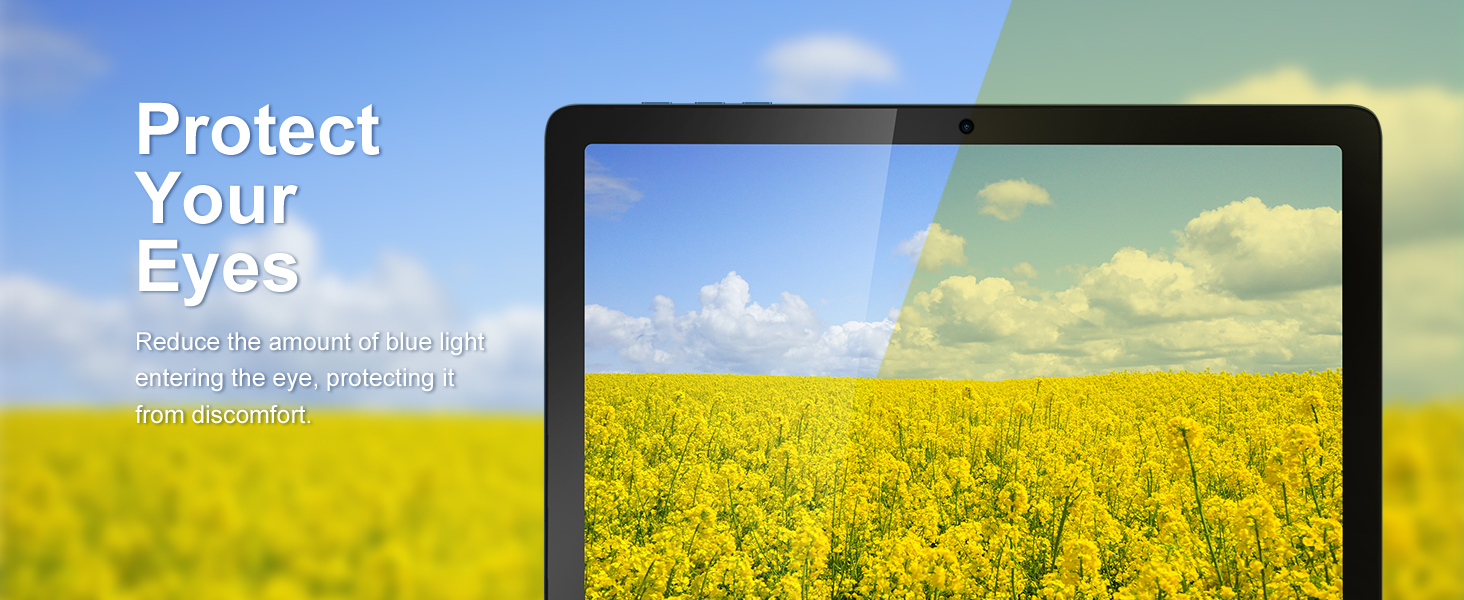
Figure 5.4: Wireless Projection in Use
This image depicts the tablet's wireless projection capability, enabling users to connect to larger screens for shared viewabubuwan kwarewa.
5.9 Aikin GPS
The tablet includes GPS for navigation and location-based services. Ensure location services are enabled in Saituna> Wuri for optimal performance with mapping applications.

Hoto na 5.5: Kewaya GPS
This image shows the tablet utilizing GPS for navigation, displaying a map with a highlighted route.
5.10 Media Consumption and Gaming
The 10.1-inch IPS HD display (1280x800 pixels) and Octa-Core processor provide a smooth experience for watching videos and playing games. The tablet supports Widevine L1 for high-definition streaming content. The Mali-G52 MC2 GPU enhances gaming performance.

Hoto 5.6: Ingantattun Kwarewar Wasan Wasan
This image highlights the tablet's improved gaming performance, featuring gyroscope motion control and a Mali-G72 GPU for a responsive gaming experience.
6. Kulawa
6.1 Tsabtace Na'urar
Use a soft, lint-free cloth to clean the screen and body of the tablet. Avoid using harsh chemicals or abrasive materials that could damage the surfaces.
6.2 Kula da baturi
The tablet is equipped with a 7000mAh battery, providing approximately 8 hours of average use. To prolong battery life:
- Ka guji matsanancin zafi.
- Kada ka bari baturin ya zube gaba daya akai-akai.
- Use the provided charger.
- Daidaita hasken allo zuwa matakin dadi.
6.3 Sabunta software
Your tablet runs on Android 13. Periodically check for system updates in Saituna > Tsari > Sabunta tsarin to ensure you have the latest features and security patches.
6.4 Gudanar da Adana
The tablet comes with 64GB of internal storage (ROM) and 4GB of RAM. You can expand storage up to 1TB using a Micro SD card. Regularly manage your files and uninstall unused applications to maintain optimal performance.
7. Shirya matsala
Anan akwai mafita ga al'amuran gama gari da zaku iya fuskanta:
- Na'urar baya kunna: Tabbatar cewa batirin ya yi caji. Idan ba haka ba, haɗa caja ka jira na ɗan lokaci kafin ka sake kunna ta.
- Ayyukan aiki a hankali: Close unused applications, clear cache, or restart the tablet. Consider freeing up storage space.
- Matsalolin haɗin Wi-Fi: Check if Wi-Fi is enabled. Restart your router and the tablet. Ensure you are within range of the Wi-Fi signal.
- Apps suna yin karo: Ensure apps are updated to their latest versions. Clear the app's cache or data in Saituna > Apps. If the issue persists, uninstall and reinstall the app.
- Allon baya amsa: Perform a forced restart by holding the Power button for approximately 10-15 seconds.
8. Ƙayyadaddun bayanai
Detailed technical specifications for the Tibuta Android 13 Tablet (Model A20 8GB+64GB):
| Siffar | Ƙayyadaddun bayanai |
|---|---|
| Alamar | Tibuta |
| Sunan Samfura | A20 |
| Lambar Samfura | 8GB+64GB |
| Tsarin Aiki | Android 13 |
| Alamar Processor | MediaTek Octa-Core |
| Saurin sarrafawa | 1.3 GHz |
| Girman allo | Inci 10.1 |
| Tsarin allo | 1280 x 800 pixels (IPS HD) |
| RAM | 4 GB |
| Ƙarfin ajiya | 64 GB (Expandable up to 1TB via Micro SD) |
| Alamar Chipset Graphics | PowerVR |
| GPU | Mali-G52 MC2 |
| Haɗuwa | Bluetooth, Wi-Fi (802.11ac, 802.11b, 802.11g, 802.11n) |
| Fasaha mara waya | 2.4GHz + 5GHz Wi-Fi, Bluetooth 4.2 |
| Nau'in Haɗawa | USB Type-C |
| Rayuwar Baturi (Matsakaici) | 8 hours |
| Girman Abu (L x W x H) | 24.8 x 16.7 x 1.2 santimita |
| Nauyin Abu | 538.8 Grams |
| Kamara ta gaba | 5 MP |
| Kamara ta baya | 8 MP |
9. Garanti da Tallafawa
9.1 Garanti na masana'anta
The Tibuta Android 13 Tablet comes with a 1-year manufacturer's warranty. Please refer to the included Warranty Card for detailed terms and conditions.
9.2 Tallafin Abokin Ciniki
If you encounter any issues not covered in this manual or require further assistance, please contact Tibuta customer support. Contact information can typically be found on the manufacturer's website or the warranty card.


