1. Samfurin Ya Ƙareview
The llano Laptop Cooler Bundle provides an effective cooling solution for laptops ranging from 15 to 21 inches, paired with a large tempered glass mousepad designed for precision. The cooler features a powerful 5.5-inch (14CM) turbo external fan and includes advanced dust protection. The glass mousepad offers an ultra-smooth, durable surface.
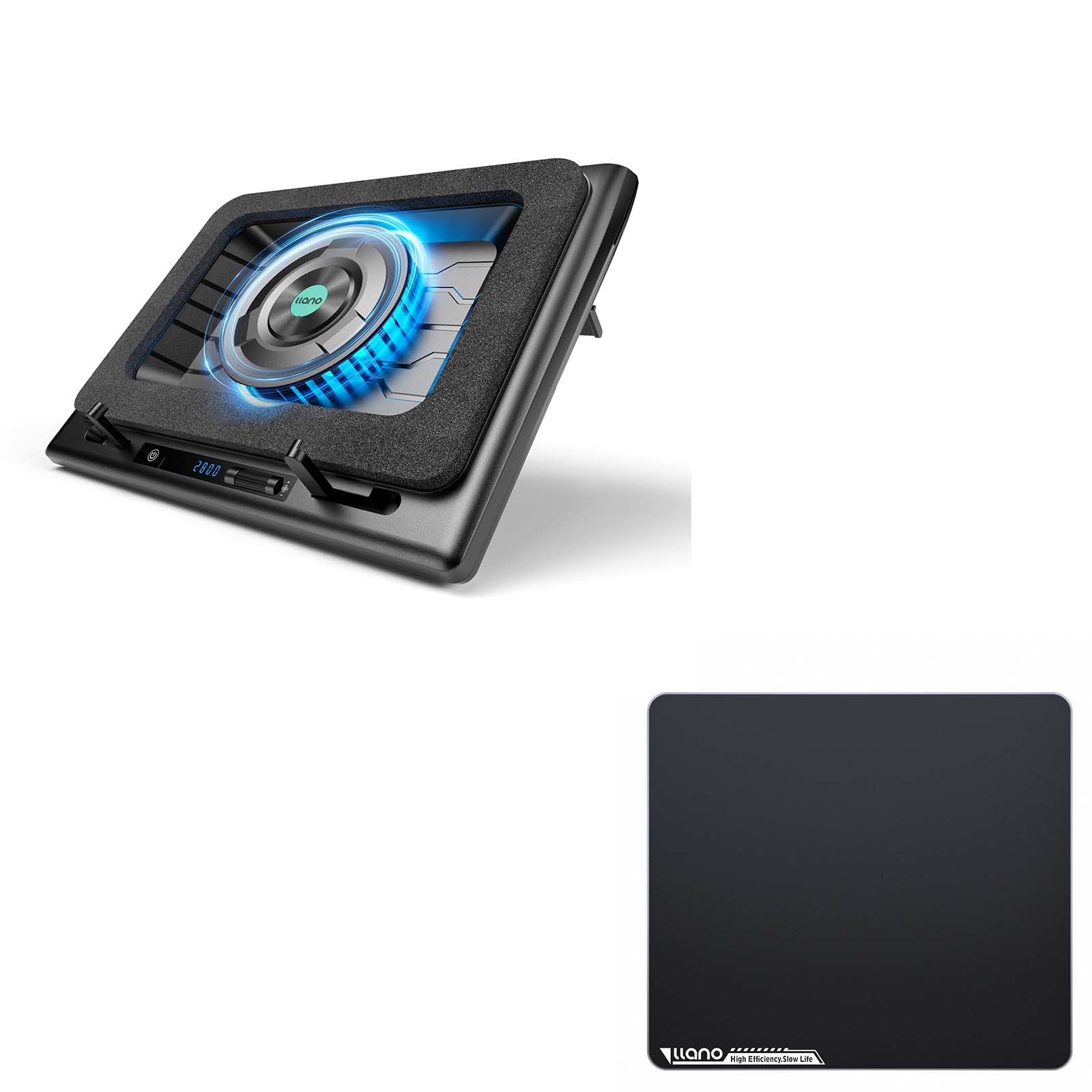
Figure 1: llano Laptop Cooler Bundle. The image displays the black laptop cooler with a central fan and a large glass mousepad.
2. Saita Umarnin
2.1 Laptop Cooler Assembly
- Cire kayan aiki: Carefully remove the laptop cooler, power adapter, USB-C to USB-A cable, and extra dust filter from the packaging.
- Position the Foam Seal: The cooler comes with a memory foam rectangle designed to create a seal between the laptop and the fan. Place this foam seal around the central fan area on the cooler.
- Haɗa Ikon: Insert the included power adapter into the DC 12V port on the side of the cooler. Plug the adapter into a power outlet.
- Connect to Laptop (Optional USB Hub Functionality): Use the provided USB-C to USB-A cable to connect the cooler's USB-C 'IN' port to a USB-A port on your laptop. This enables the cooler's integrated USB hub (OUT1, OUT2, OUT3) for connecting additional peripherals.
- Adjust Laptop Support Arms: Pull up the two small arms located at the front edge of the cooler base. These arms, equipped with rubber pads, will hold your laptop securely in place.
- Place Laptop: Carefully place your laptop onto the cooler, ensuring it rests securely against the support arms and the foam seal.
- Daidaita Tsayi (Na zaɓi): On the underside of the cooler, locate the two adjustable feet. Flip them up to increase the height and improve airflow if desired.
2.2 Glass Mousepad Setup
- Unpack Mousepad: Remove the tempered glass mousepad from its packaging.
- Position on Desk: Place the mousepad on a clean, flat surface. The anti-slip rubber base will keep it stable during use.

Figure 2: Illustration of the llano Laptop Cooler setup with a laptop placed on top, highlighting the foam seal and adjustable arms.
3. Umarnin Aiki
3.1 Kunnawa / Kashewa
To power on the laptop cooler, press and hold the touch-sensitive power button located on the front control panel for a few seconds. The LED display will illuminate, showing the current fan speed. To power off, press and hold the power button again.
3.2 Daidaita Gudun Fan
The cooler features a 5.5-inch turbo fan with an operating speed range of 300 to 2800 RPM. Use the roller dial on the control panel to adjust the fan speed. Each notch up or down on the dial changes the speed by 100 RPM. The LED display will show the current RPM.

Figure 3: Close-up of the control panel showing the power button, LED display, and roller dial for fan speed adjustment.
3.3 RGB Lighting Control
The cooler features RGB lighting. Use the dedicated lighting control buttons on the control panel to cycle through different lighting modes and colors. Refer to the quick start guide for specific button functions related to lighting.
4. Kulawa
4.1 Tsaftace Tacewar Kura
The laptop cooler is equipped with a removable dust filter to prevent dust intrusion into your laptop. To clean the filter:
- Turn off and unplug the laptop cooler.
- Carefully release the clips holding the fan filter cover on the underside of the cooler.
- Cire matattarar ƙura.
- Clean the filter by gently tapping it to dislodge dust or by using a soft brush/compressed air.
- Reinsert the clean filter and secure the cover with the clips.
An extra dust filter is included in the package for convenience.
4.2 Gabaɗaya Tsabtace
Wipe the exterior surfaces of the laptop cooler and glass mousepad with a soft, damp zane. Ka guji yin amfani da sinadarai masu tsauri ko kayan goge-goge wanda zai iya lalata ƙarshen.

Figure 4: The glass mousepad is shown being easily wiped clean with a cloth, demonstrating its low-maintenance surface.
5. Ƙayyadaddun bayanai
- Daidaituwar Kwamfyutan Ciniki: 15-21 inci
- Girman Fan: 5.5 inches (14CM) turbo fan
- Gudun Masoya: 300-2800 RPM (adjustable)
- Ayyukan sanyaya: Up to 44°C (111°F) temperature drop (CPU+GPU) in 90 seconds
- Haɗin kai: 3x USB-A output ports, 1x USB-C input port, DC 12V power input
- Mousepad Material: Premium Tempered Glass with AG Micro-Etched surface
- Mousepad Features: Anti-slip rubber base, smooth rounded edges, skin-friendly, stain-resistant, scratch-resistant
- Kariyar ƙura: Removable dust filter (extra filter included)
6. Shirya matsala
6.1 Fan Not Turning On
- Ensure the power adapter is securely connected to the cooler and a working power outlet.
- Verify the power button is pressed and held until the LED display illuminates.
- Duba wurin fitar da wutar lantarki ta wata na'ura don tabbatar da cewa yana aiki.
6.2 Insufficient Cooling
- Increase the fan speed using the roller dial on the control panel.
- Ensure the foam seal is properly positioned around your laptop to direct airflow effectively.
- Check and clean the dust filter on the underside of the cooler. A clogged filter can restrict airflow.
- Ensure your laptop's intake vents are not obstructed.
6.3 USB Ports Not Working
- Ensure the USB-C to USB-A cable is securely connected from the cooler's 'IN' port to your laptop's USB-A port.
- Verify the laptop cooler is powered on.
7. Garanti & Tallafi
For warranty information and customer support, please refer to the contact details provided in the product packaging or visit the official llano website. Ajiye rasidin siyan ku azaman shaidar siyan don da'awar garanti.


