1. Samfurin Ya Ƙareview
The UGREEN 8K@60Hz DisplayPort to HDMI Adapter (Model DP134) facilitates a unidirectional connection from a DisplayPort 1.4 source to an HDMI 2.1 display. This adapter supports high-resolution video up to 8K at 60Hz, including backward compatibility with 4K at 240Hz, 2K at 240Hz, and 1080P at 480Hz, ensuring clear visuals and synchronized audio. It is designed for connecting devices like PCs, laptops, or graphics cards to HDMI displays such as projectors, monitors, or HDTVs.

Image: UGREEN DisplayPort to HDMI Adapter illustrating its unidirectional nature from DP 1.4 to HDMI 2.1, compatible with desktops, graphics cards, laptops as sources, and projectors, monitors, HDTVs as displays.
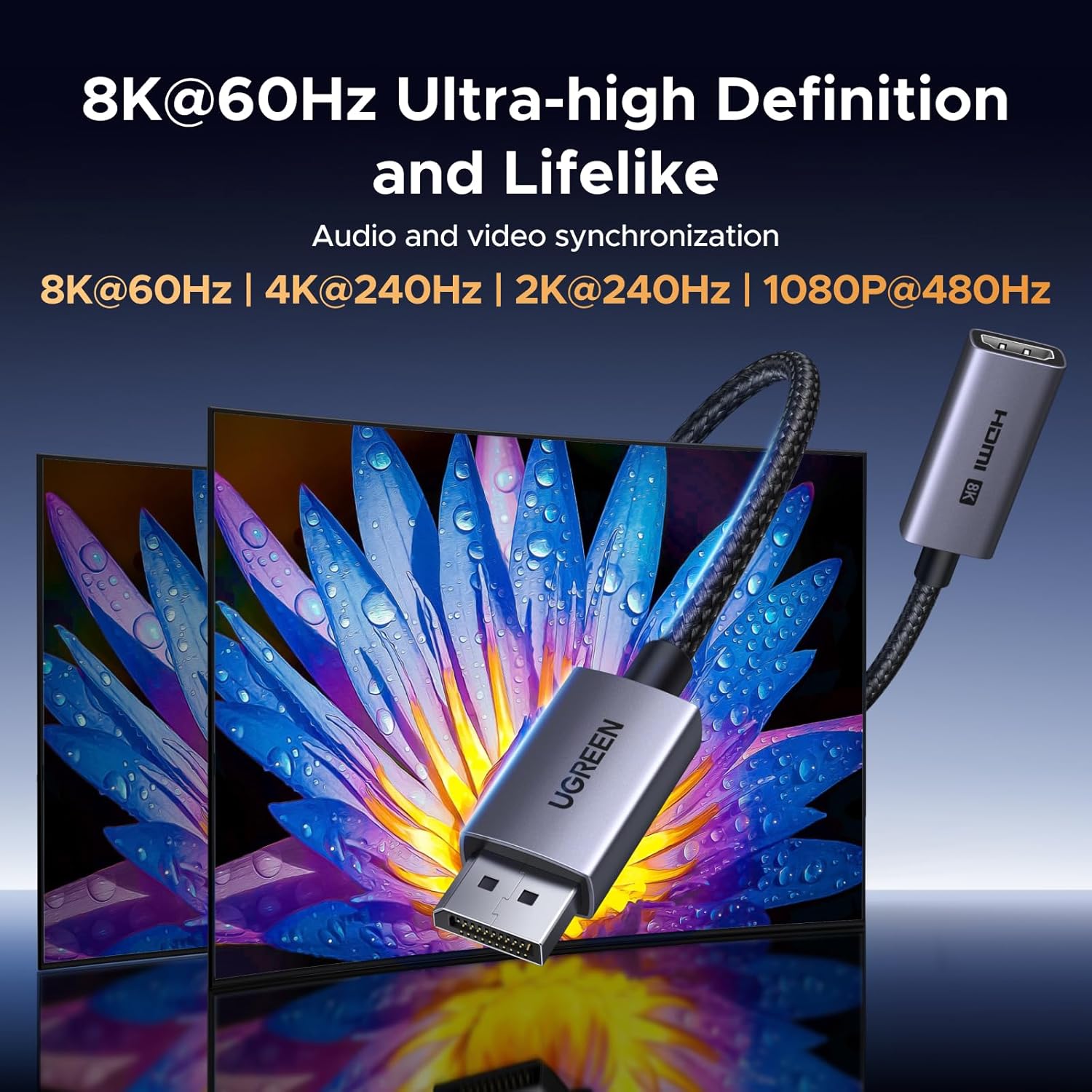
Image: The adapter connected, demonstrating support for 8K@60Hz, 4K@240Hz, 2K@240Hz, and 1080P@480Hz resolutions with audio and video synchronization.
2. Mabuɗin Siffofin
- 8K@60Hz Ultra HD and Audio Synchronization: Supports resolutions up to 8K@60Hz, 4K@240Hz, 2K@240Hz, and 1080P@480Hz, providing realistic 3D video effects and high-quality audio.
- Uni-directional Transmission: Connects DisplayPort source devices (PC, laptop, graphics card) to HDMI display devices (projector, VR headset, HDTV). Does not support HDMI sources to DP displays.
- Advanced Technology: Supports DisplayPort 1.4, HDMI 2.1, HDCP 2.2, DSC1.2a, and HDR 10+ for vivid images and enhanced visual experiences.
- Toshe kuma Kunna: Requires no drivers for installation, allowing for quick synchronization of video and audio.
- Gina Mai Dorewa: Features a slim aluminum housing for heat dissipation, a braided sheath for flexibility, tinned copper conductors for conductivity, and aluminum foil + Al/Mg braided shielding for stable signal transmission.
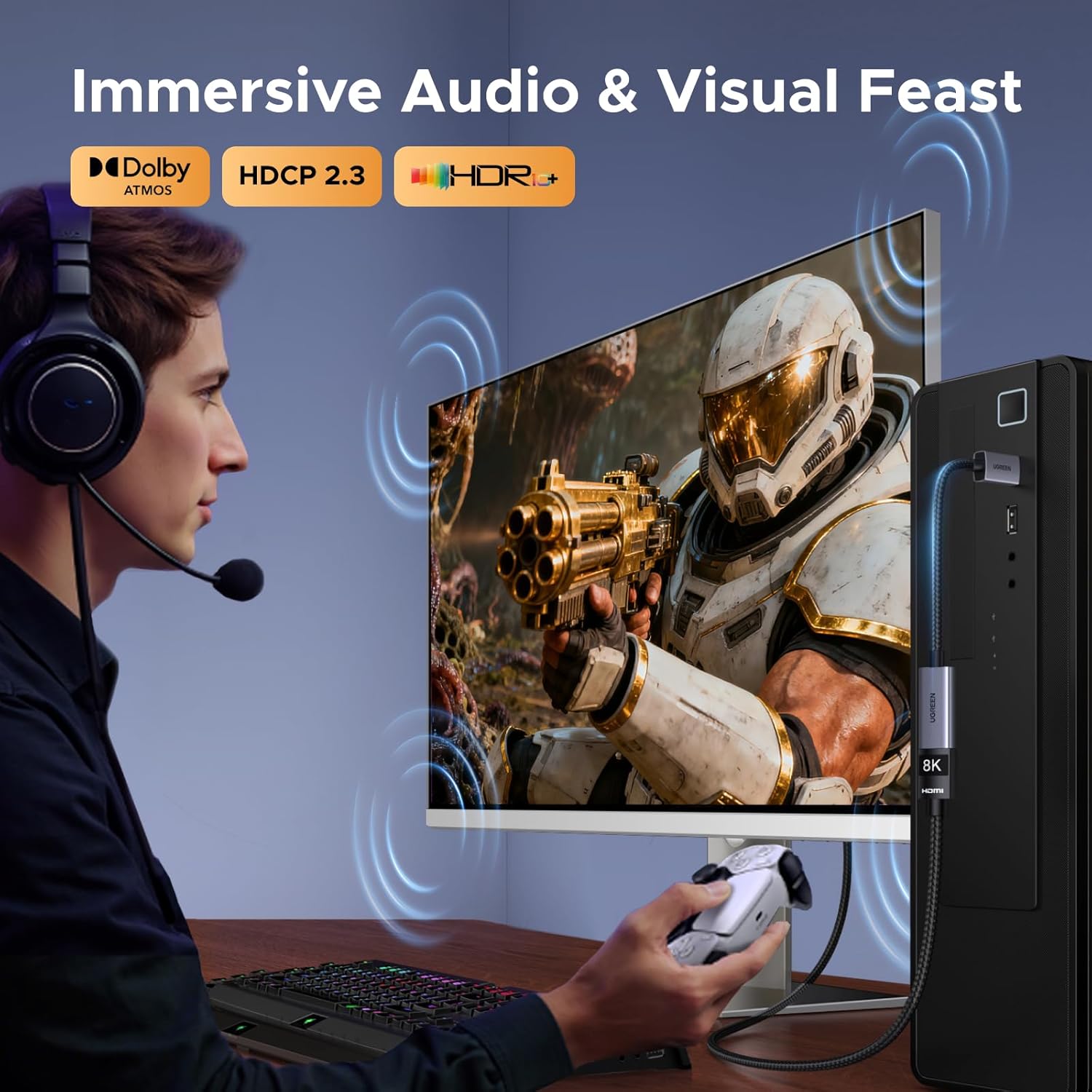
Image: Demonstrating immersive audio and visual experience with Dolby Atmos, HDCP 2.3, and HDR+ support.

Image: Illustrating support for high refresh rates without lag, including G-SYNC, ALLM, QMS, and QFT.
3. Saita da Shigarwa
The UGREEN DisplayPort to HDMI Adapter is designed for simple plug-and-play operation. Follow these steps to connect your devices:
- Connect to DisplayPort Source: Insert the DisplayPort male connector of the adapter into the DisplayPort output port of your source device (e.g., PC, laptop, graphics card).

Image: Step 1 - Plug the adapter into the DisplayPort source.
- Haɗa HDMI Cable: Plug your HDMI cable into the HDMI female port of the adapter.

Image: Step 2 - Plug an HDMI cable into the adapter.
- Connect to HDMI Display: Connect the other end of your HDMI cable to the HDMI input port on your display device (e.g., monitor, projector, HDTV).

Image: Step 3 - Connect the HDMI cable to your display.
Note: Both the DisplayPort source device and the HDMI monitor must support the desired resolution and refresh rate (e.g., 8K@60Hz) to achieve optimal performance.
4. Umarnin Aiki
Once connected, the adapter will automatically detect and transmit the video and audio signal from your DisplayPort source to your HDMI display. No additional drivers or software are required for basic operation.
Hanyoyin Nuni
Your operating system typically allows for different display configurations:
- Yanayin Fadada: This mode allows you to extend your desktop across multiple screens, providing more workspace for multitasking.
- Yanayin Mirror: This mode duplicates your primary display onto the secondary screen, which is ideal for presentations, sharing content, or watching videos with others.

Image: Demonstrating Extended and Mirror display modes for increased efficiency and enjoyment.
5. Daidaituwa
This adapter is designed for specific DisplayPort to HDMI connections. Please review the compatible and incompatible devices below:
Compatible Devices (DisplayPort Source)
- Kwamfutoci
- Graphics Cards (e.g., AMD, NVIDIA, RTX 50/30/40, RX 6000/7000 series)
- Laptops (e.g., ThinkPad T14 Gen 4)
- Any device with a DisplayPort output interface
Compatible Devices (HDMI Display)
- Majigi
- Monitors (e.g., UltraSharp)
- HDTV
- VR Headsets
Incompatible Devices (HDMI Source or other port types)
- MacBook (if using HDMI as source)
- Gaming Consoles: PS5, PS4, Switch, Switch 2, Xbox (these are HDMI source devices)
- GoPro (HDMI source device)
- Docking stations (unless they specifically have a DisplayPort output)
- Mini DP, Micro HDMI, USB-A (different connector types)
- DP Monitors (this adapter converts DP to HDMI, not the other way around)
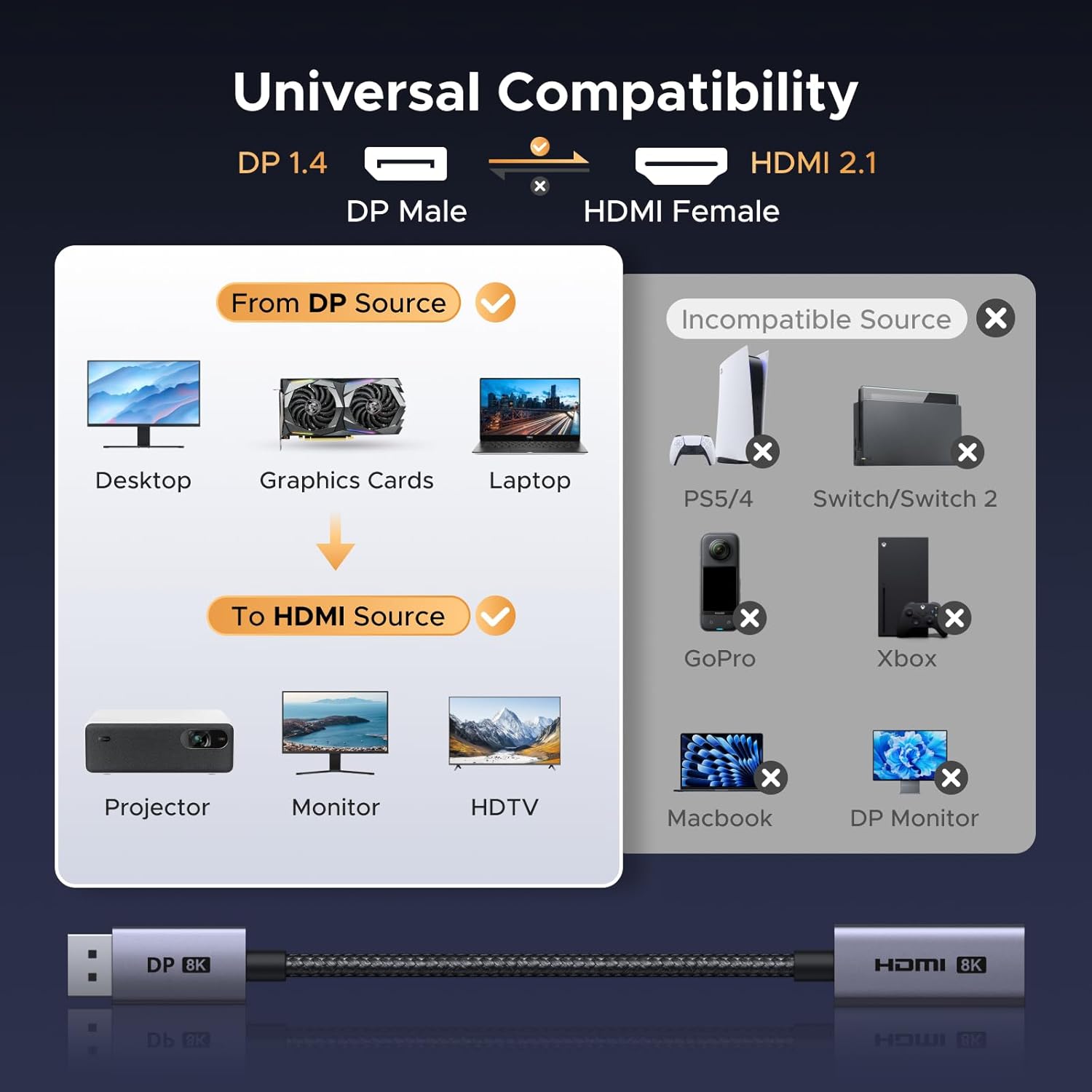
Image: Universal Compatibility diagram, detailing supported DisplayPort sources and HDMI displays, alongside incompatible HDMI source devices.
6. Shirya matsala
Idan kun haɗu da al'amura, koma zuwa mafita gama gari masu zuwa:
No Signal or Incorrect Resolution
- Ensure both the DisplayPort source device and the HDMI display support the desired resolution and refresh rate. For example, to achieve 8K@60Hz, both devices must support it.
- Verify that the adapter is securely connected to both the DisplayPort output of your source and the HDMI cable leading to your display.
- Check your display settings on your computer to ensure the correct resolution and refresh rate are selected for the connected display.
- Confirm the adapter is unidirectional (DP to HDMI only). It will not work if connecting an HDMI source to a DP display.
Flickering or Unstable Display
- Ensure all cables are securely connected. Loose connections can cause signal instability.
- Try a different HDMI cable, as cable quality can affect signal integrity, especially at higher resolutions and refresh rates.
- Reduce the resolution or refresh rate in your display settings to see if the issue persists. This can help determine if the problem is related to bandwidth limitations.
- Sabunta direbobin katin zanenku zuwa sabon sigar.
- Note for Linux users: Some users have reported issues with VRR (Variable Refresh Rate) or achieving full refresh rates (e.g., 144Hz) on Linux with AMD GPUs, potentially due to kernel patch requirements. Check for the latest kernel updates or community forums for specific solutions.
7. Ƙayyadaddun samfur
| Siffar | Daki-daki |
|---|---|
| Lambar Samfura | DP134 |
| Nau'in Haɗawa | DisplayPort Male to HDMI Female (Unidirectional) |
| Shafin DisplayPort | 1.4 |
| HDMI Sigar | 2.1 |
| Max Resolution & Refresh Rate | 8K@60Hz, 4K@240Hz, 2K@240Hz, 1080P@480Hz |
| Bandwidth | 32.4 Gbps |
| Dabarun Fasaha | HDCP 2.2, DSC1.2a, HDR 10+, G-SYNC, ALLM, QMS, QFT |
| Kayan abu | Aluminum housing, Nylon braided cable, Tinned copper conductors, Nickel-plated connectors |
| Launi | Grey |
| Nauyin Abu | 1.76 oz |
| Girma | 7.36 x 5.16 x 0.59 inci (Kunshin) |

Image: Resolution and cable length/AWG requirements for optimal performance.
8. Kulawa da Kulawa
The UGREEN DisplayPort to HDMI Adapter is built with durable materials for long-lasting performance. Proper care will help maintain its functionality:
- Ajiya: Ajiye adaftan a wuri mai sanyi, busasshiyar nesa da hasken rana kai tsaye da matsanancin zafi.
- Tsaftacewa: Use a soft, dry cloth to clean the adapter and connectors. Avoid using liquid cleaners or abrasive materials.
- Gudanarwa: Avoid excessive bending or twisting of the cable to prevent internal damage. Always grasp the connector housing when plugging or unplugging the adapter.
- Kariya: The aluminum housing and braided cable are designed for durability and heat dissipation, contributing to the product's longevity.

Image: Features demonstrating the adapter's durable construction, including bending test results, aluminum material, nickel-plated connectors, and nylon braided cable.
9. Garanti da Tallafawa
For warranty information and technical support, please refer to the official UGREEN website or contact UGREEN customer service directly. Keep your purchase receipt for any warranty claims.


