1. Gabatarwa
This manual provides detailed instructions for the safe and efficient operation of your Bigme B6 Color Ebook Reader. Please read this manual thoroughly before using the device and retain it for future reference.
Abubuwan Kunshin
- Bigme B6 Ebook Reader
- Harka Kariya
- Jagorar mai amfani (wannan takaddar)
- Cajin Cable

Image 1.1: Bigme B6 Color Ebook Reader and included protective case.
2. Samfurin Ya Ƙareview
Familiarize yourself with the components and features of your Bigme B6 device.
Mabuɗin Siffofin
- Nunawa: 6-inch Color E-paper display, 300 PPI resolution.
- Mai sarrafawa: Octa-core CPU for responsive performance.
- Ƙwaƙwalwar ajiya & Ajiye: 4GB RAM and 64GB internal storage, expandable via Micro-SD card (up to 1TB).
- Tsarin Aiki: Android 14, providing access to various applications.
- Haɗin kai: Bluetooth and Wi-Fi for wireless communication.
- Audio: Integrated Hi-Fi Speakers.
- Zane: Ultra-bakin ciki profile at 6.98mm.
- Ta'aziyyar Ido: Features Zero Blue Light and Flicker-Free technology, TUV Rheinland certified for reduced eye strain.

Hoto na 2.1: Ƙarsheview of the Bigme B6 Ebook Reader's main features.
3. Saita
3.1 Fara Cajin
Before first use, fully charge your Bigme B6. Connect the device to a power source using the provided charging cable. The charging indicator will show the charging status.
3.2 Kunnawa / Kashewa
- Don kunnawa: Danna kuma ka riƙe maɓallin wuta har sai allon ya haskaka.
- To power off: Press and hold the power button, then select "Power Off" from the options.
- To sleep/wake: Briefly press the power button.
3.3 Haɗin hanyar sadarwa (Wi-Fi)
- From the home screen, navigate to Saituna.
- Zaɓi Network & Intanet.
- Juyawa Wi-Fi ku ON.
- Zaɓi hanyar sadarwar Wi-Fi da kuke so daga lissafin.
- Shigar da kalmar wucewa idan an buƙata kuma danna Haɗa.
3.4 Initial System Configuration
Upon first power-on or after a factory reset, follow the on-screen prompts to select your language, connect to Wi-Fi, and set up your Google account (optional, for app store access).
4. Umarnin Aiki
4.1 Navigation na asali
- Kariyar tabawa: Tap to select items, swipe to scroll, pinch to zoom.
- Allon Gida: Displays installed applications and widgets.
- Kwamitin Sanarwa: Doke ƙasa daga saman allon don samun damar saituna masu sauri da sanarwa.
- Cibiyar Kulawa: Access system settings like Wi-Fi, Bluetooth, brightness, and refresh modes.
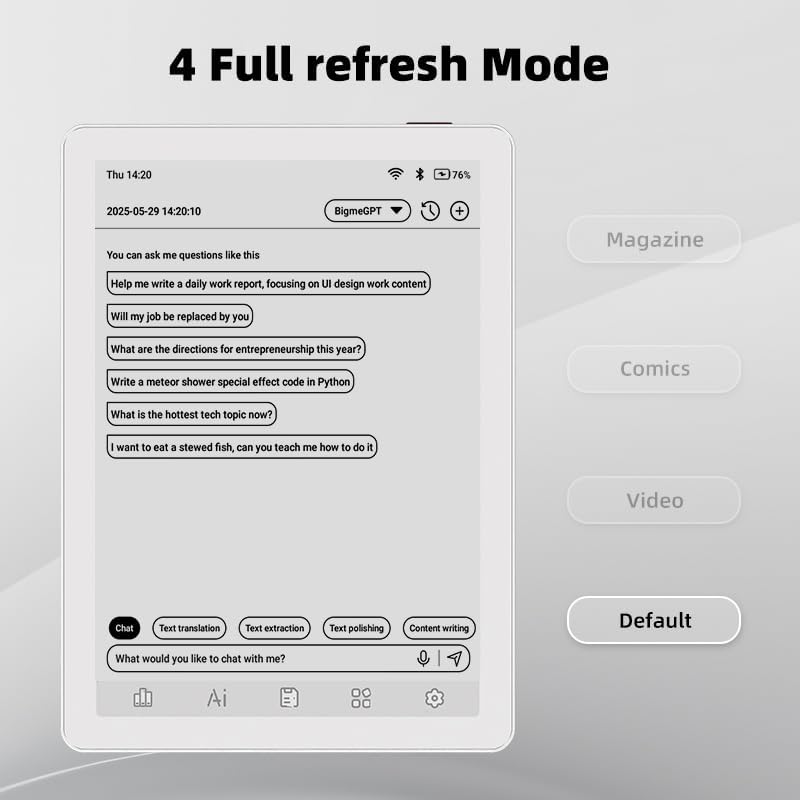
Image 4.1: The Bigme B6 home screen displaying various application icons.

Image 4.2: Accessing the Control Center for quick adjustments to device settings.
4.2 Reading eBooks
The Bigme B6 supports over 19 eBook formats, including PDF, TXT, EPUB, MOBI, and more. You can load books via USB or download them directly through reading applications.
- Open a reading application (e.g., the default reader or a downloaded app like Kindle or Libby).
- Select the book you wish to read from your library.
- Tap the left or right side of the screen to turn pages.
- Tap the center of the screen to access reading options (font size, line spacing, contrast, etc.).
- To highlight text: Press and hold on a word, then drag the selection handles to cover the desired text. Options for highlighting or notes will appear.

Image 4.3: Reading an eBook and highlighting text with color on the Bigme B6.
4.3 Gudanar da App
As an Android 14 device, you can install applications from the Google Play Store or other compatible sources.
- Sanya Apps: Bude App Store icon (Google Play Store) on your home screen, search for the desired app, and follow the installation prompts.
- Cire Manhajoji: Je zuwa Saituna > Apps, select the app, and tap Cire shigarwa.
4.4 Audiobooks and Media Playback
The device supports audiobook playback through its built-in Hi-Fi speakers or connected Bluetooth headphones.
- Playing Audiobooks: Use a compatible audiobook application.
- Connecting Bluetooth Headphones: Je zuwa Saituna > Na'urorin haɗi > Bluetooth, enable Bluetooth, and pair with your headphones.

Image 4.4: The Bigme B6 supports audiobooks, allowing for hands-free listening.
4.5 Display Refresh Modes
The Bigme B6 offers multiple refresh modes to optimize display performance for different content types.
- Access refresh modes from the Control Center or Display Settings.
- Hanyoyin gama gari sun haɗa da:
- Na baya: Standard reading mode.
- Mujalla: Optimized for images and text in magazines.
- Comics: Enhanced for comic book viewing.
- Bidiyo: Provides a smoother refresh rate for video content (note: e-paper displays have limitations for video).

Image 4.5: Selecting from various refresh modes to suit different content types.
5. Kulawa
5.1 Tsabtace Na'urar
- Use a soft, lint-free cloth to gently wipe the screen and body of the device.
- Don taurin kai, dampen zane mai ruwa ko mai tsabtace allo wanda aka tsara musamman don kayan lantarki.
- A guji amfani da sinadarai masu tsauri, kayan gogewa, ko kuma danshi mai yawa.
5.2 Kula da baturi
- Yi cajin na'urar akai-akai, amma guje wa barin ta gabaɗaya na tsawon lokaci.
- Do not expose the device to extreme temperatures, as this can affect battery life.
- Use only the provided or a certified charging cable and adapter.
5.3 Adana
When not in use for extended periods, store the device in a cool, dry place, away from direct sunlight and extreme temperatures. It is recommended to charge the device to about 50% before long-term storage.
6. Shirya matsala
| Matsala | Dalili mai yiwuwa | Magani |
|---|---|---|
| Na'urar baya kunnawa. | Ƙananan baturi; na'urar daskararre. | Caji na'urar na akalla minti 30. Yi sake kunnawa ta tilasta ta hanyar riƙe maɓallin kunnawa na tsawon daƙiƙa 10-15. |
| Screen is unresponsive or slow. | Temporary software glitch; too many apps running. | Restart the device. Close unnecessary background applications. Check for system updates. |
| Ba za a iya haɗi zuwa Wi-Fi ba. | Incorrect password; router issue; Wi-Fi disabled. | Ensure Wi-Fi is enabled and the password is correct. Restart your Wi-Fi router. Try connecting to a different network. |
| Baturi yana gudu da sauri. | High screen brightness; many background apps; frequent Wi-Fi/Bluetooth use. | Reduce screen brightness. Close unused applications. Disable Wi-Fi and Bluetooth when not needed. Adjust refresh mode settings. |
| Applications crash or freeze. | App incompatibility; insufficient memory. | Update the application. Clear the app's cache (Settings > Apps > [App Name] > Storage & cache). If issues persist, uninstall and reinstall the app. |
7. Ƙayyadaddun bayanai
| Sunan Samfura | US-B6 |
| Nunawa | 6-inch Color E-paper, Electronic Ink, 300 PPI |
| Tsarin Aiki | Android 14 |
| RAM | 4GB |
| Ma'ajiyar Ciki | 64GB |
| Ma'ajiyar Faɗawa | Micro-SD card (up to 1TB support) |
| Haɗuwa | Bluetooth, WiFi |
| Baturi | 1 Baturi mara inganci (an haɗa) |
| Girma (L x W x Th) | 5.88" x 4.25" x 0.28" (14.94 cm x 10.8 cm x 0.71 cm) |
| Nauyin Abu | 6.2 oz (175.77 grams) |
| Tallafin eBook Formats | PDF, TXT, EPUB, EPUB3, HTML, HTM, AZW3, FB2, DOC, DOCX, MOBI, OEB, CBR, RPC, RTF, DJVU, ZIP |
8. Garanti da Tallafawa
8.1 Bayanin Garanti
Please refer to the warranty card included with your product for specific warranty terms and conditions. The warranty typically covers manufacturing defects for a specified period from the date of purchase.
8.2 Tallafin Abokin Ciniki
For technical assistance, troubleshooting not covered in this manual, or warranty claims, please contact Bigme customer support. Contact details can usually be found on the Bigme official website ko a kan marufi na samfur.
Hakanan kuna iya ziyartar wurin Bigme Store on Amazon don ƙarin bayanin samfur da albarkatun tallafi.


