Gabatarwa
Na gode da siyaasing the Klipsch ProMedia Lumina 2.1 Computer Gaming Speaker System. This manual provides essential information for setting up, operating, and maintaining your new speaker system to ensure optimal performance and longevity. The ProMedia Lumina system is designed to deliver powerful audio with deep bass and customizable RGB lighting, enhancing your gaming, music, and movie experiences.
Bayanin Tsaro
Please read all safety instructions before using this product. Keep this manual for future reference.
- Tushen wutar lantarki: Connect the system only to the type of power source indicated on the marking label.
- Samun iska: Ensure proper ventilation around the speakers and subwoofer. Do not block any ventilation openings.
- Ruwa da Danshi: Do not expose the system to water, rain, or moisture. Do not place objects filled with liquids on the system.
- Zafi: A ajiye tsarin nesa da hanyoyin zafi kamar radiators, rejista na zafi, murhu, ko wasu na'urori da ke samar da zafi.
- Tsaftacewa: Tsaftace kawai da bushe bushe.
- Hidima: Kada kayi yunƙurin yiwa wannan samfur sabis da kanka. Koma duk sabis ɗin zuwa ƙwararrun ma'aikatan sabis.
Abubuwan Kunshin
Tabbatar cewa duk abubuwa suna nan a cikin kunshin ku:
- 1 x Klipsch ProMedia Lumina Subwoofer
- 2 x Satellite Speakers (Left and Right)
- 1 x Bluetooth Speaker (This is listed as "Included Components" in the product data, but typically refers to the system's Bluetooth capability rather than a separate speaker unit. The system itself has Bluetooth functionality.)
- Wutar Wuta
- Speaker Connection Cables
- USB-C USB
- 3.5mm AUX Cable
- Jagorar mai amfani (wannan takaddar)
Samfurin Ƙarsheview
The Klipsch ProMedia Lumina system consists of a powerful subwoofer and two satellite speakers, designed for a rich 2.1 audio experience. The system features integrated controls and multiple connectivity options.

Hoto na 1: The complete Klipsch ProMedia Lumina 2.1 speaker system, showing the central subwoofer unit flanked by two satellite speakers. The speakers are black with silver accents and sit on small stands.
Masu magana da tauraron dan adam
The two satellite speakers feature a re-envisioned cabinet design with tiltable stands for optimal sound projection. They are equipped with Microtractrix horn tweeters for pinpoint clarity.

Hoto na 2: Gaban kusa view of the two Klipsch ProMedia Lumina satellite speakers, highlighting their black finish, silver base, and speaker cones.

Hoto na 3: A baya view of the two Klipsch ProMedia Lumina satellite speakers, showing the various ports and controls on their back panels. The left speaker has a settings button and a headphone jack, while the right speaker has a USB-C port and a power/Bluetooth button.
Subwoofer
Low-profile subwoofer delivers powerful low-end punch. It features an adjustable gain knob and cable management design for minimal floor space and maximum impact.
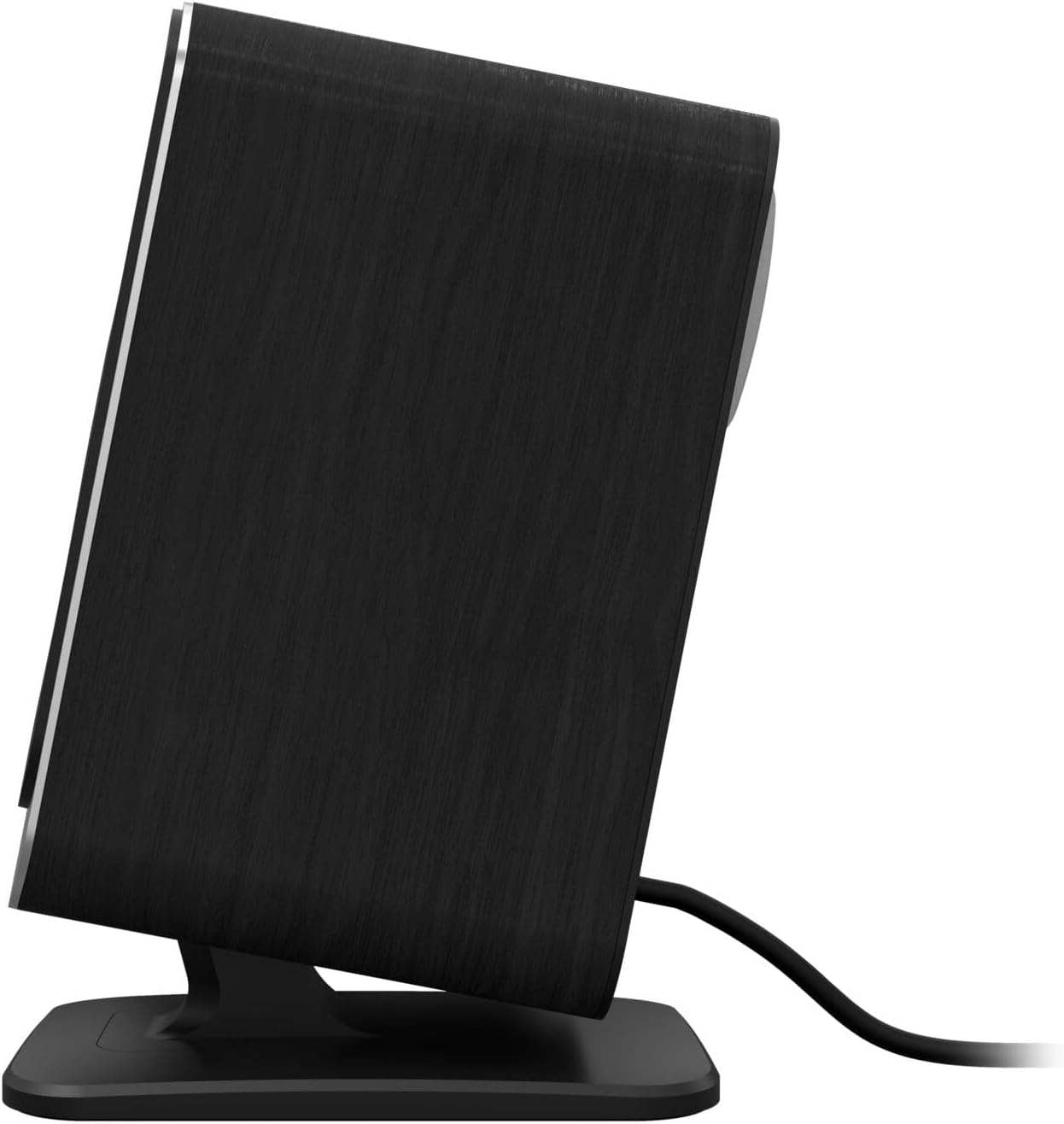
Hoto na 4: A gefe view of the Klipsch ProMedia Lumina subwoofer, showcasing its compact design and textured black finish.
Fim na 1: An official product video from Klipsch showcasing the ProMedia Lumina Computer Speakers with LED Lighting. The video highlights the design and lighting features of the speaker system.
Saita
Follow these steps to set up your Klipsch ProMedia Lumina speaker system:
- Wuri: Place the subwoofer on the floor or a sturdy surface near your computer. Position the satellite speakers on either side of your monitor, ensuring they are at ear level for the best audio experience.
- Haɗa masu magana da tauraron dan adam: Connect the left and right satellite speakers to the corresponding outputs on the back of the subwoofer using the provided speaker cables. Ensure a secure connection.
- Haɗa zuwa Tushen Sauti:
- USB-C: Connect the USB-C cable from your computer to the USB-C input on the right satellite speaker.
- AUX (3.5mm): Connect the 3.5mm AUX cable from your audio source (e.g., computer, smartphone) to the AUX input on the left satellite speaker.
- Bluetooth: For wireless connection, ensure Bluetooth is enabled on your device and the speaker system. Press and hold the power/Bluetooth button on the right satellite speaker to enter pairing mode. Select "Klipsch ProMedia Lumina" from your device's Bluetooth settings.
- Haɗin Wuta: Connect the power cable to the subwoofer and then plug it into a wall outlet.
- Kunna Wuta: Press the power/Bluetooth button on the right satellite speaker to turn on the system.

Hoto na 5: The Klipsch ProMedia Lumina speaker system integrated into a gaming desktop setup, showing the satellite speakers flanking a monitor and the subwoofer placed discreetly.
Aiki
Once your system is set up, you can begin enjoying your audio. The main controls are located on the subwoofer and the right satellite speaker.
Abubuwan Gudanarwa na asali
- Girma: Use the volume knob on the subwoofer to adjust the overall sound level.
- Treble/Bass: Adjust the treble and bass knobs on the subwoofer to fine-tune your audio preferences.
- Zaɓin shigarwa: Use the input button (if available on the subwoofer or remote) to switch between connected sources (USB-C, AUX, Bluetooth).
Klipsch Control App
Enhance your experience with the Klipsch Control desktop app, available on all app stores. The app allows for precision command over various settings:
- Daidaita EQ: Adjust equalization settings to match your audio content.
- Yanayin Haske: Customize RGB lighting effects, including night mode and music react mode.
- Sarrafa fasali: Access additional features and settings for personalized audio.

Hoto na 6: A laptop screen displaying the Klipsch Control App interface, with a satellite speaker visible next to it, illustrating the app's role in customizing the speaker system.

Hoto na 7: The rear of the Klipsch ProMedia Lumina satellite speakers displaying different customizable light patterns, showcasing the RGB lighting effects.
Kulawa
To ensure the longevity and optimal performance of your Klipsch ProMedia Lumina system, follow these maintenance guidelines:
- Tsaftacewa: Use a soft, dry cloth to clean the surfaces of the speakers and subwoofer. Avoid using abrasive cleaners, waxes, or solvents.
- Ƙura: Regularly dust the speaker grilles and vents to prevent dust buildup, which can affect sound quality and ventilation.
- Na'urar USB: Keep cables organized and untangled to prevent damage and ensure a tidy setup.
- Yanayin Muhalli: Avoid exposing the system to extreme temperatures, high humidity, or direct sunlight.
Shirya matsala
If you encounter any issues with your speaker system, refer to the following common troubleshooting steps:
| Matsala | Magani |
|---|---|
| Babu Sauti |
|
| Static or Distortion |
|
| Abubuwan Haɗin Haɗin Bluetooth |
|
Ƙayyadaddun bayanai
| Siffar | Daki-daki |
|---|---|
| Sunan Samfura | Klipsch ProMedia Lumina |
| Lambar Samfurin Abu | 1073625 |
| Nau'in Kakakin | Mai Magana da Kwamfuta |
| Yanayin Fitarwa na Audio | Kewaye |
| Fasahar Haɗuwa | Bluetooth (5.3), USB-C, AUX (3.5mm) |
| Siffa ta Musamman | LED Light (Customizable RGB) |
| Matsakaicin Ƙarfin Fitar da Kakakin | 10 Watts |
| Amsa Mitar | 20 Hz |
| Girman samfur | 6.5"D x 4"W x 9.75"H |
| Nauyin Abu | 13.1 fam |
| Launi | Baki |
Garanti da Taimako
Klipsch products are designed for years of enjoyment. For warranty information and technical support, please refer to the official Klipsch website ko tuntuɓi sabis na abokin ciniki. Ajiye shaidar siyan ku don kowane da'awar garanti.


